
Use Application Accounts with External Email Clients
Overview
An Application Account lets you securely connect your Twake mailbox to third-party email applications, such as:
- Mozilla Thunderbird
- Microsoft Outlook
- Apple Mail
- Mobile mail applications
- ...
Instead of using your Twake account password, each application authenticates using its own dedicated application password.
Using a separate password for each application improves security. If a device is lost or no longer trusted, you can revoke access for that application without changing your main account password.
For example, you could create separate Application Accounts for:
- Outlook on your work laptop
- Thunderbird on your desktop computer
- Mail app on your phone
Each application receives its own password.
Create an Application Account
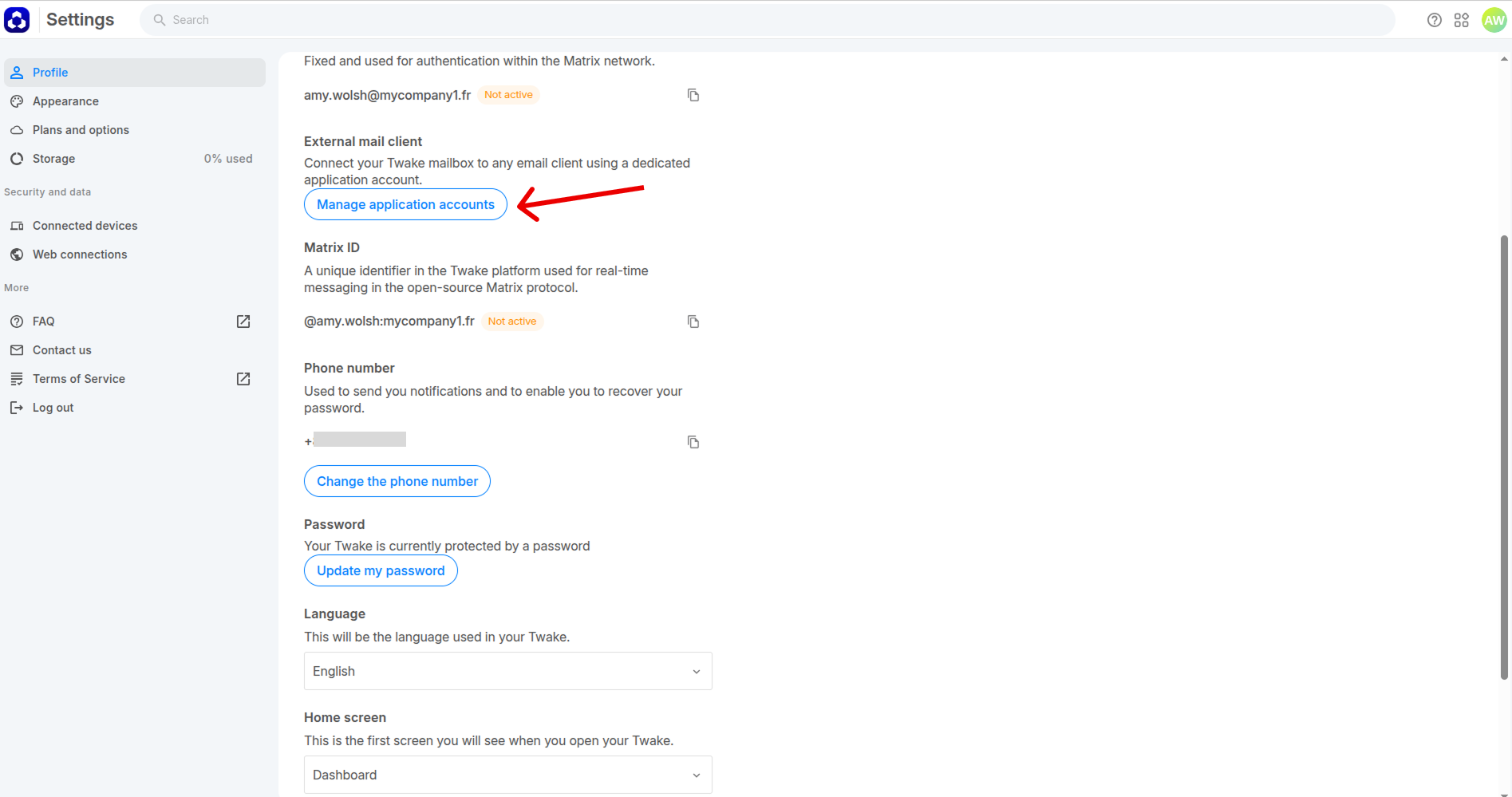
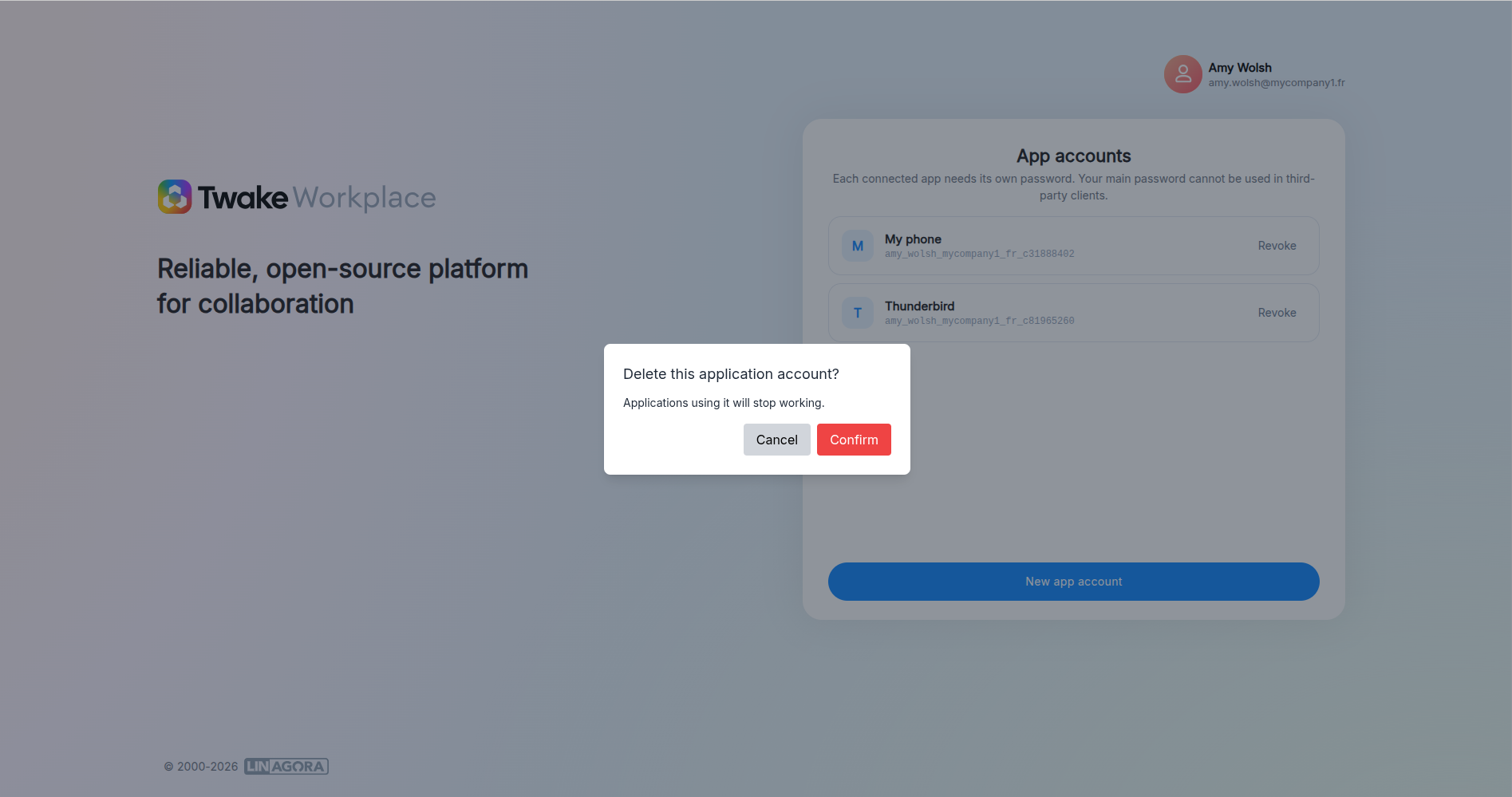
- Open Settings.
- Scroll to External mail client.
- Click Manage application accounts.
The App accounts page opens. If no Application Accounts exist, you'll see an empty list.
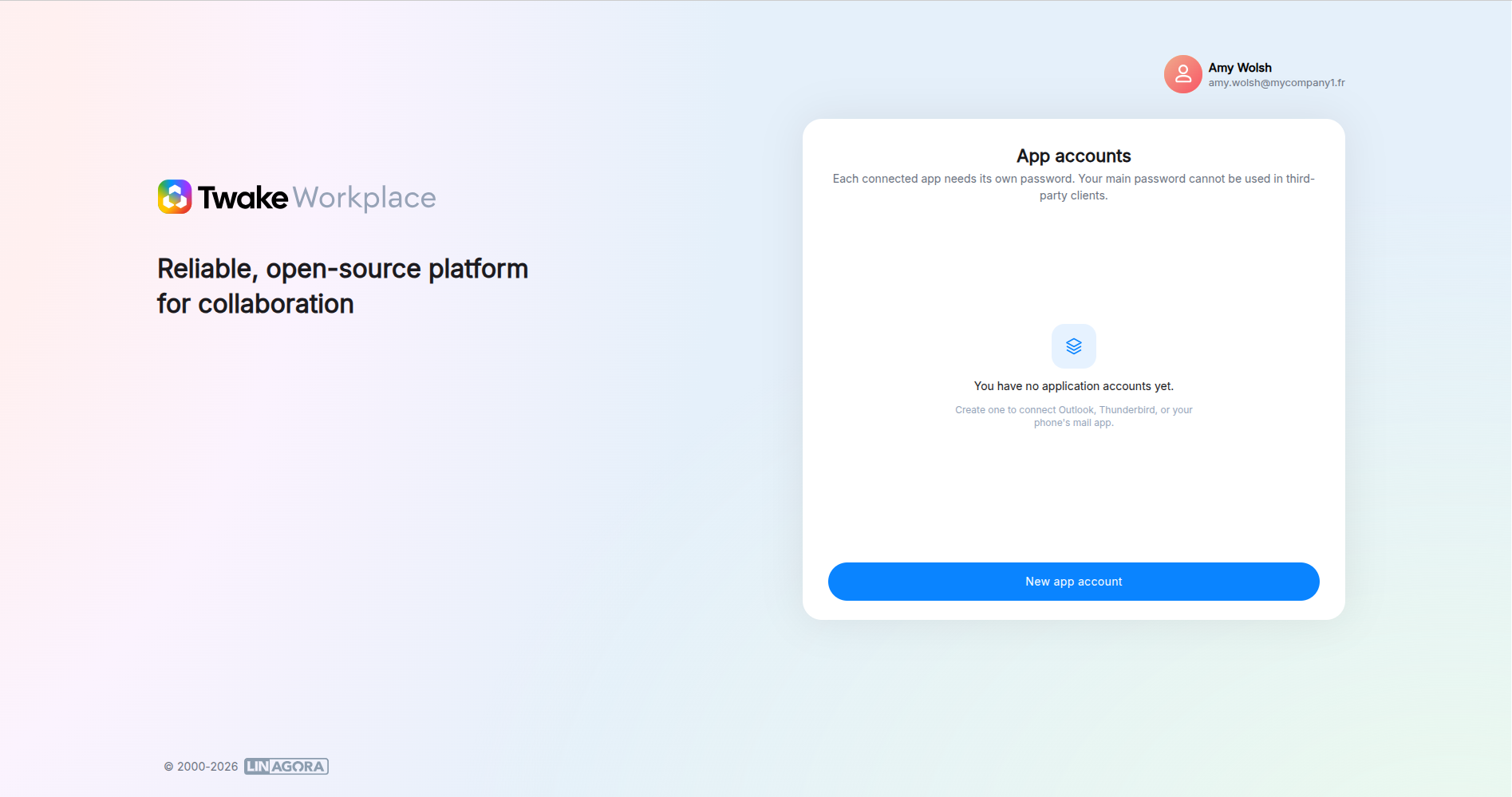
- Click New app account.
- Enter a name that helps you recognize the application later.
For example: Outlook, Thunderbird, Mobile phone, Work laptop...
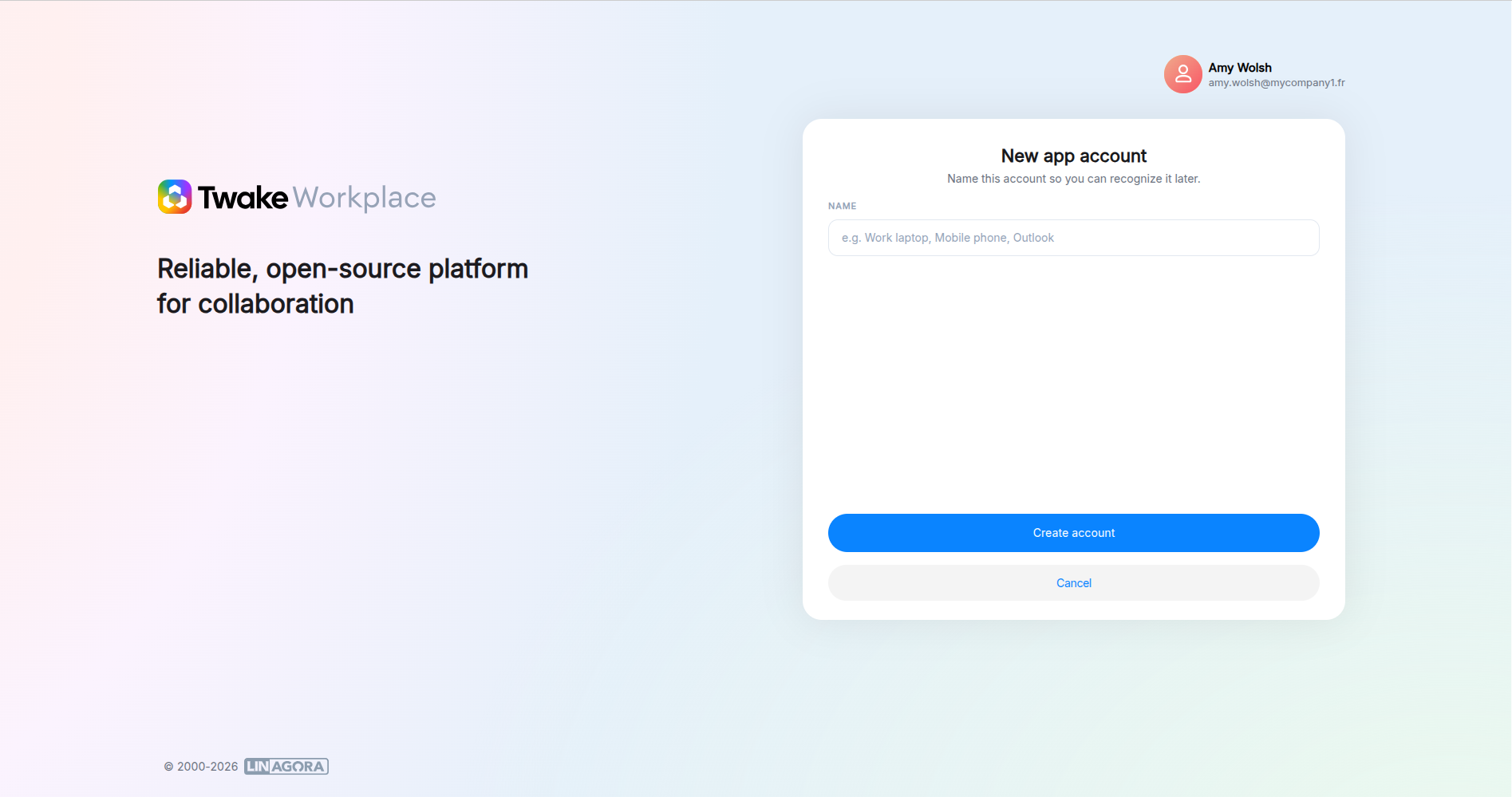
- Click Create account.
Twake generates:
- Account ID
- Username (your email address)
- Application Password
These credentials will be used when configuring your email client.
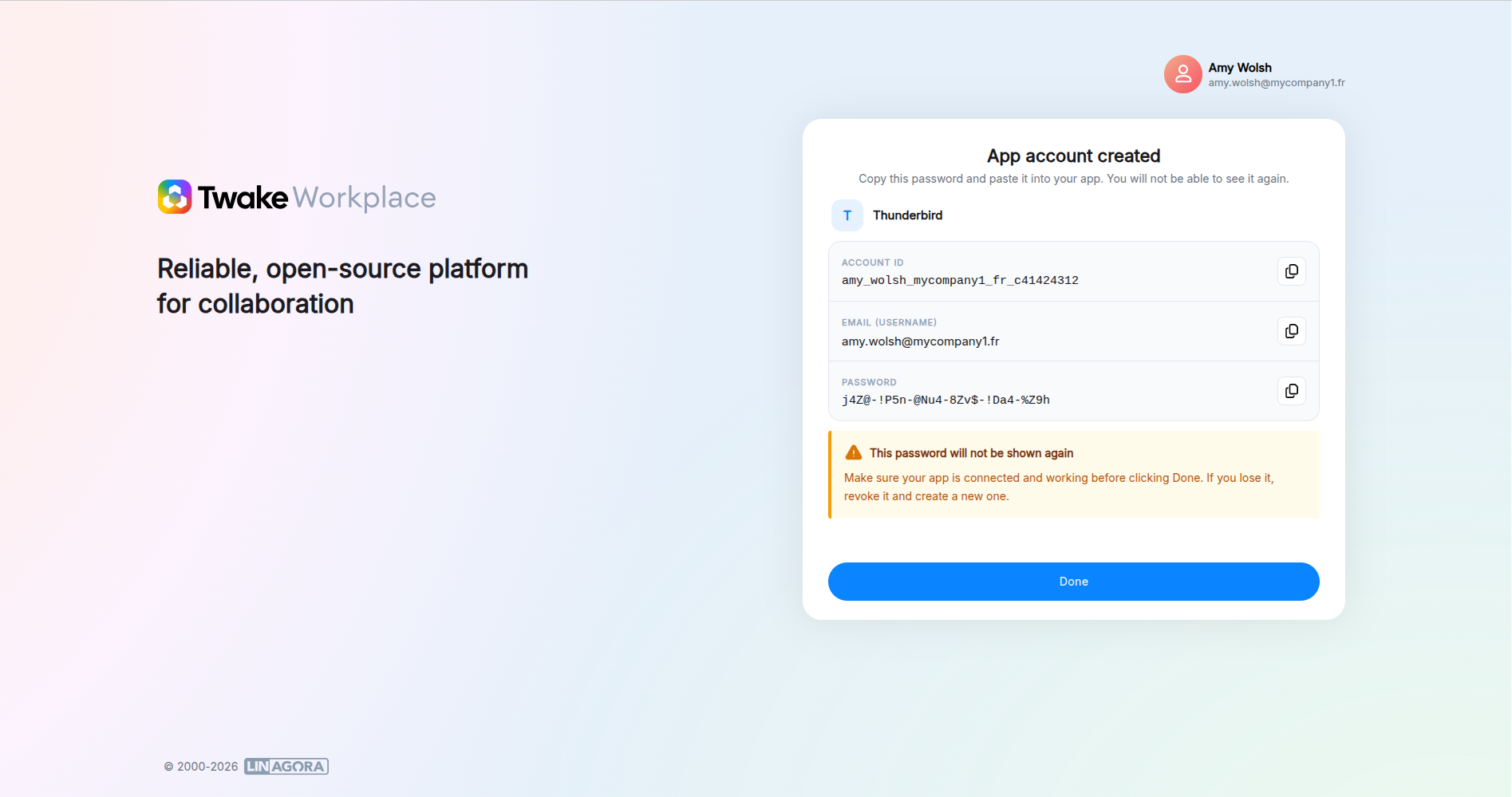
If you lose the password, you must revoke the Application Account and create a new one.
Revoke an Application Account
If you no longer use an application or believe its credentials have been compromised, revoke the Application Account.
- Open Manage application accounts.
- Locate the account you want to remove.
- Click Revoke.
- Click Confirm.
After revoking:
- The application password becomes invalid immediately
- The connected email client can no longer access your mailbox
Configure Twake Mail in Mozilla Thunderbird
Add your account
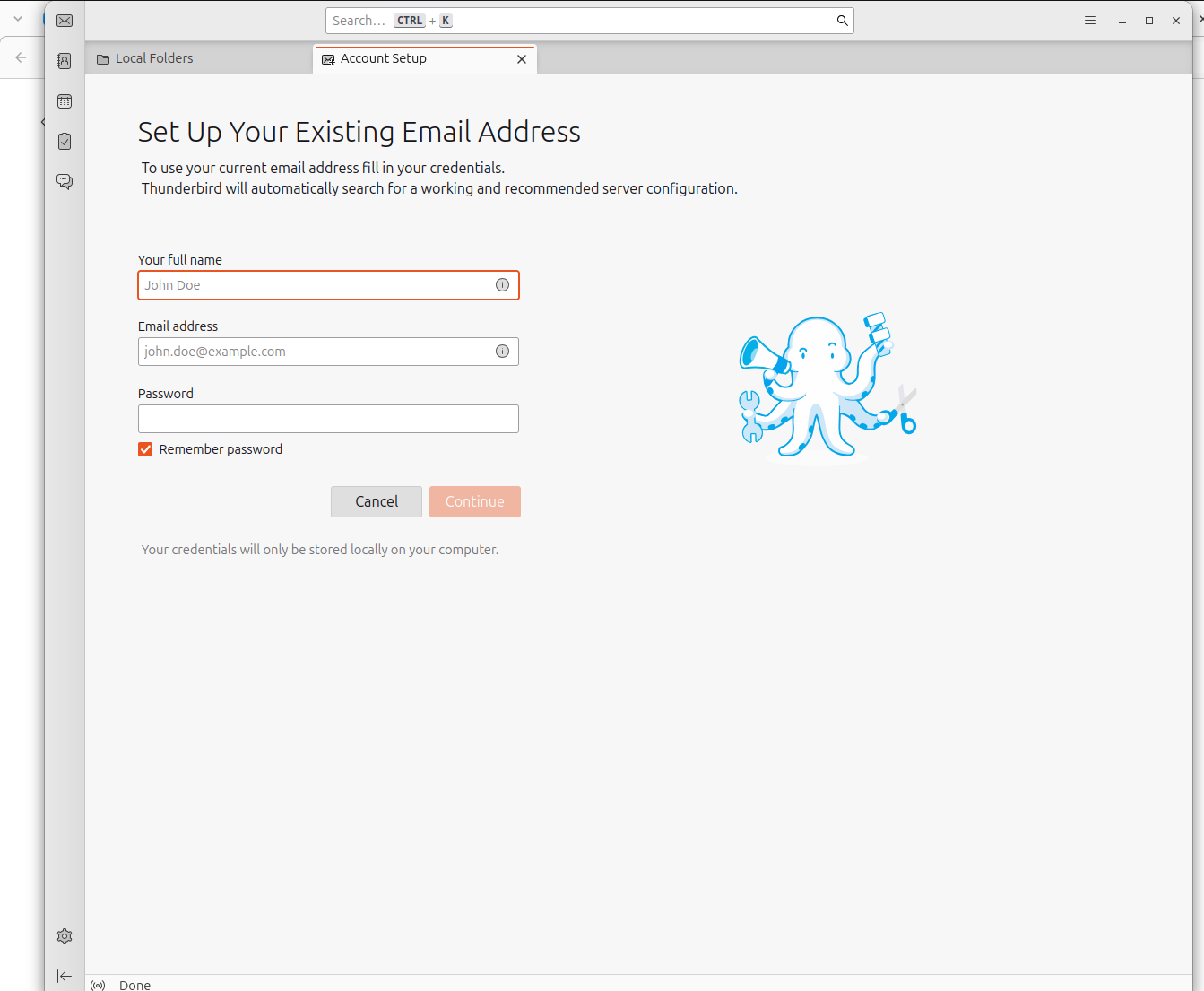
- Open Mozilla Thunderbird.
- Select Email to add a new account.
- Enter:
- Your full name
- Your Twake email address
- The Application Password generated in Twake. Do not use your regular Twake Mail password.
- Click Continue.
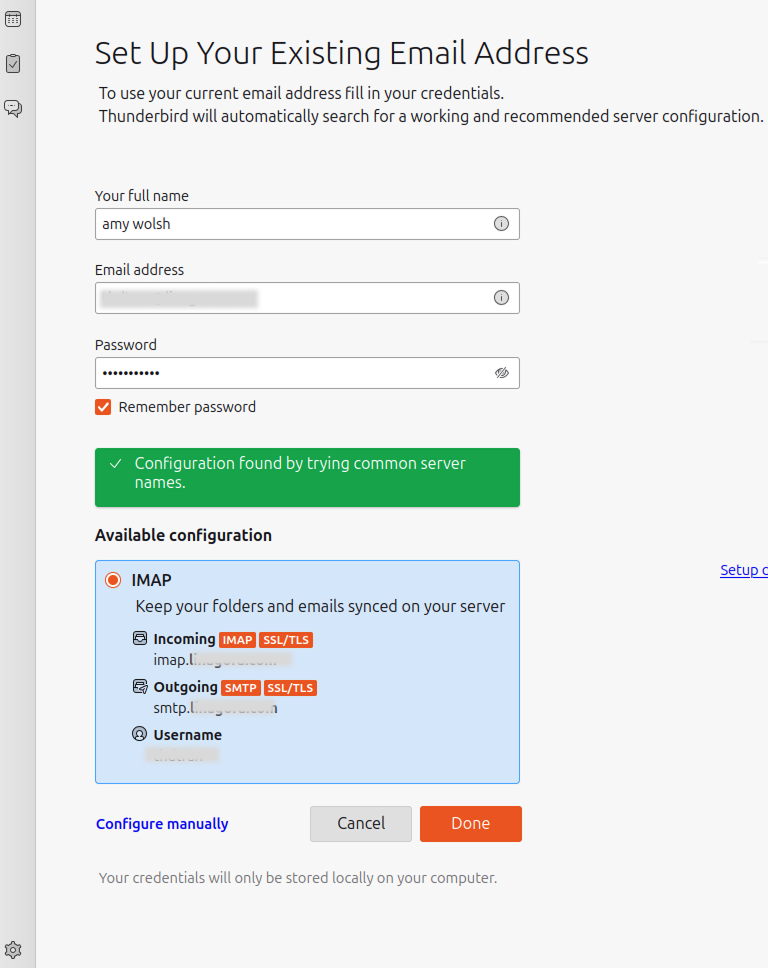
The Setting should be detected automatically. If everything looks fine, click Done and you can start using Thunderbird to send and receive emails.
If Thunderbird doesn't detect the settings automatically, You need to Configure manually: Input configuration as below:
Incoming server:
- Protocol: IMAP
- Hostname: imap.twake.app
- Port: 993
- Connection security: SSL/TLS
- Authentication method: Normal password
- Username: Your Twake email address
Outgoing server:
- Hostname: imap.twake.app
- Port: 465
- Connection security: SSL/TLS
- Authentication method: Normal password
- Username: Your Twake email address
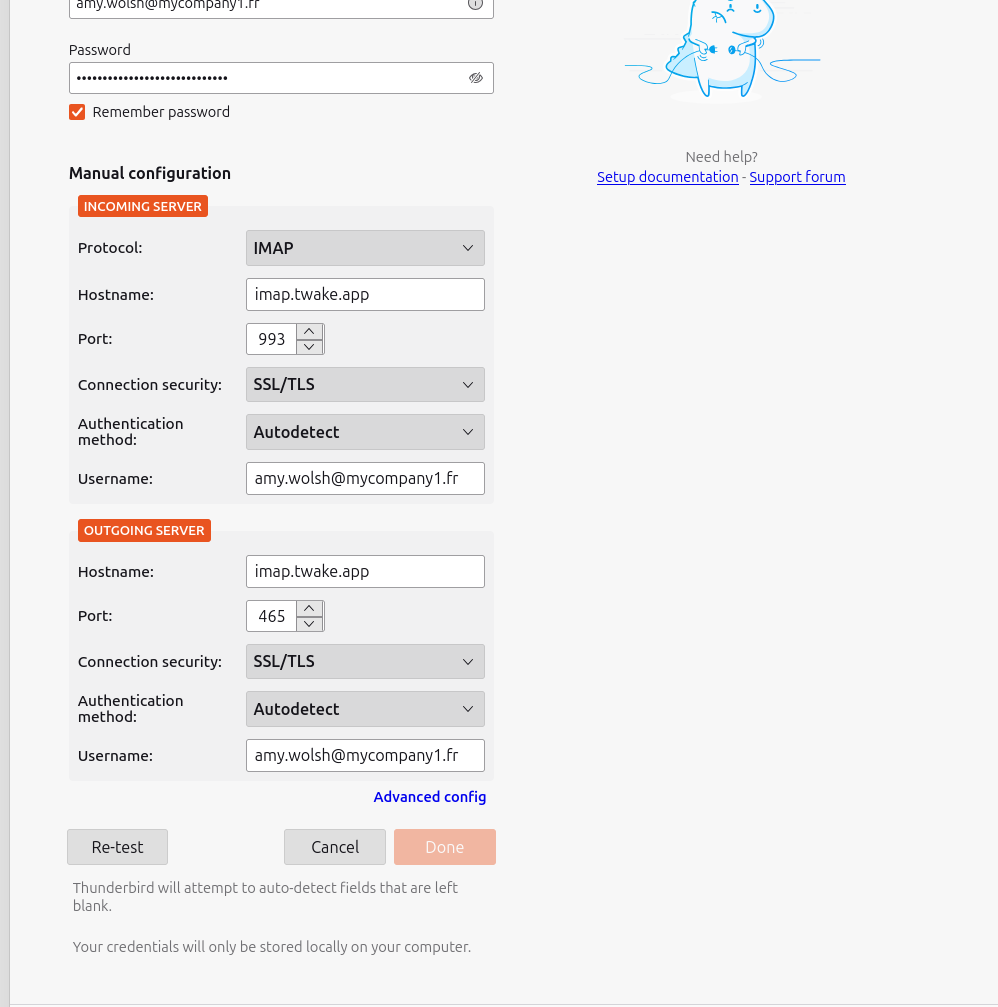
Then click Retest button.
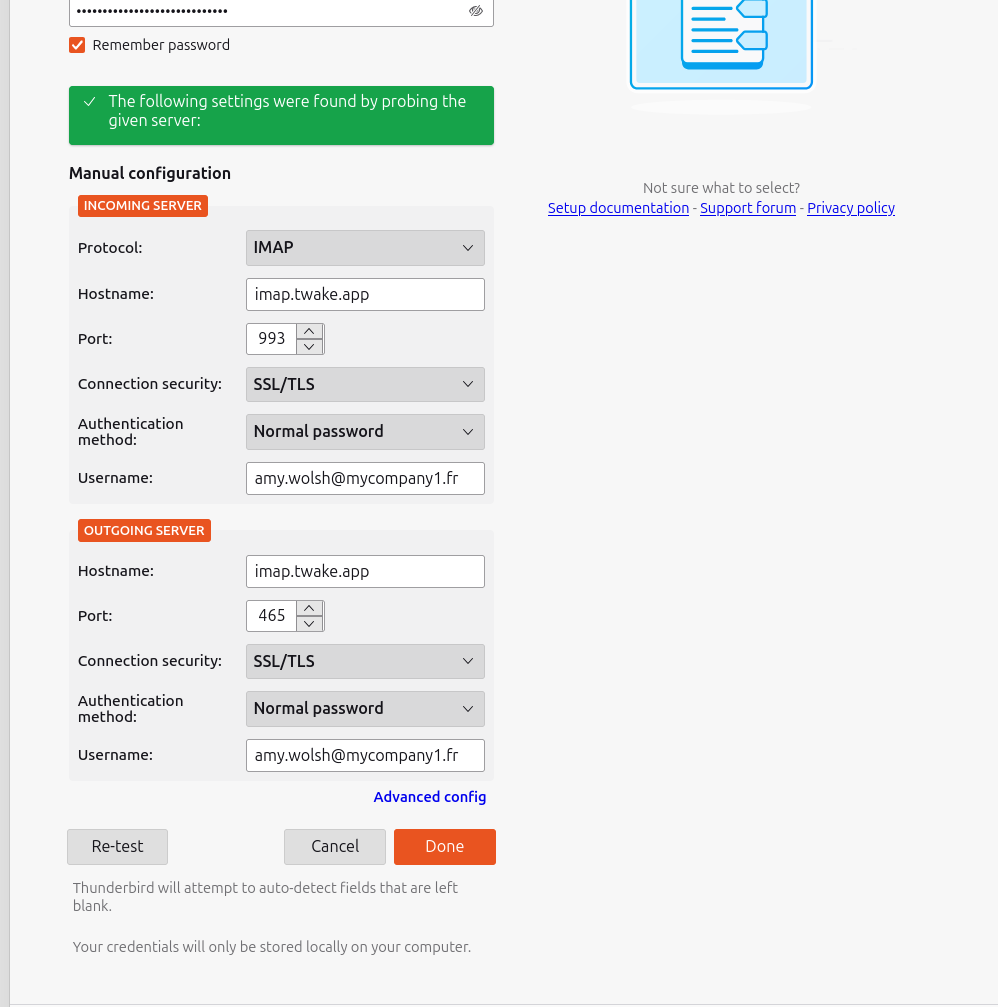
When Thunderbird confirms the configuration, click Done to complete the setup.
Configure Twake Mail in Outlook software
1. Open Outlook and select File
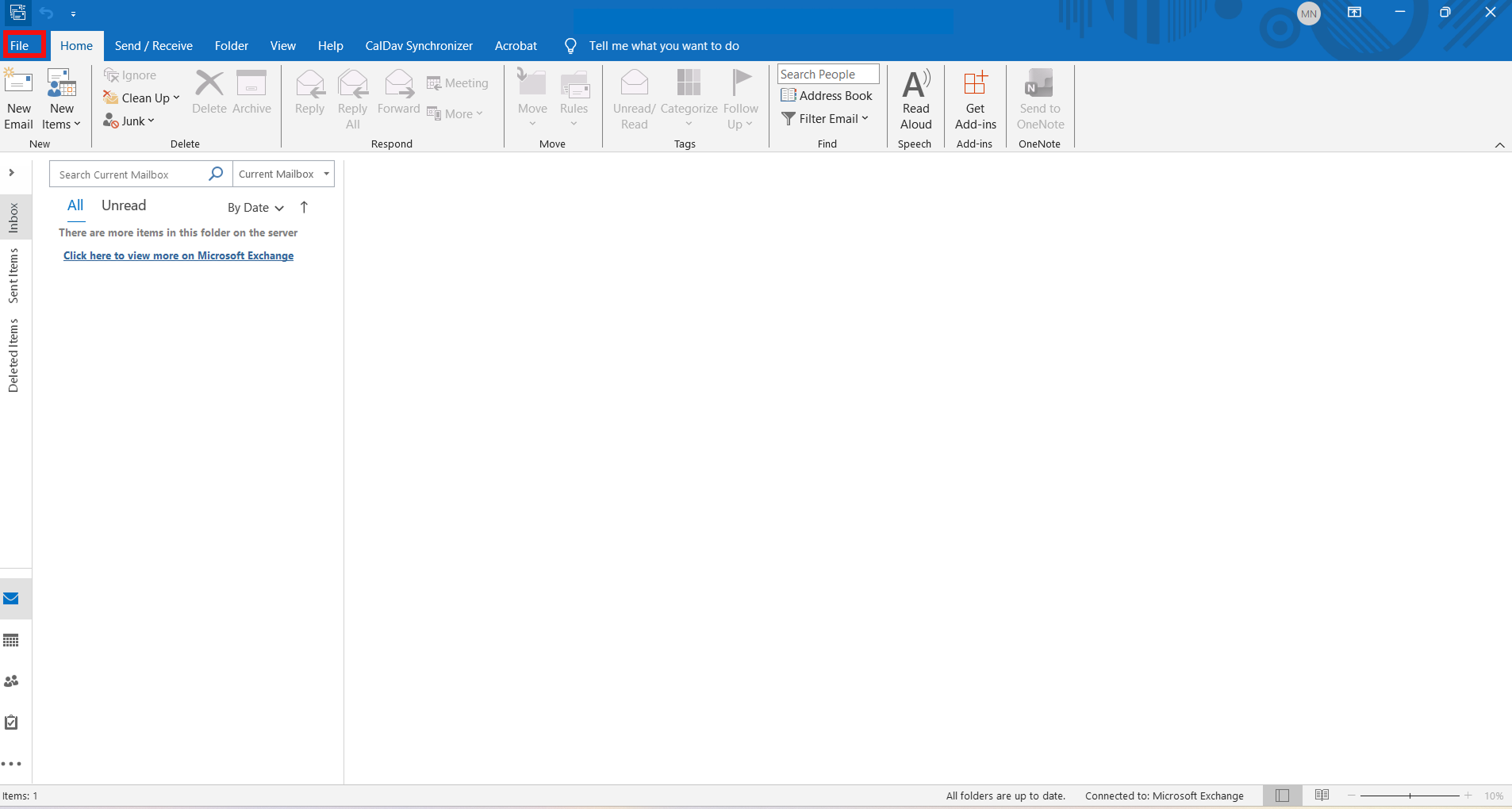
- Click Add Account
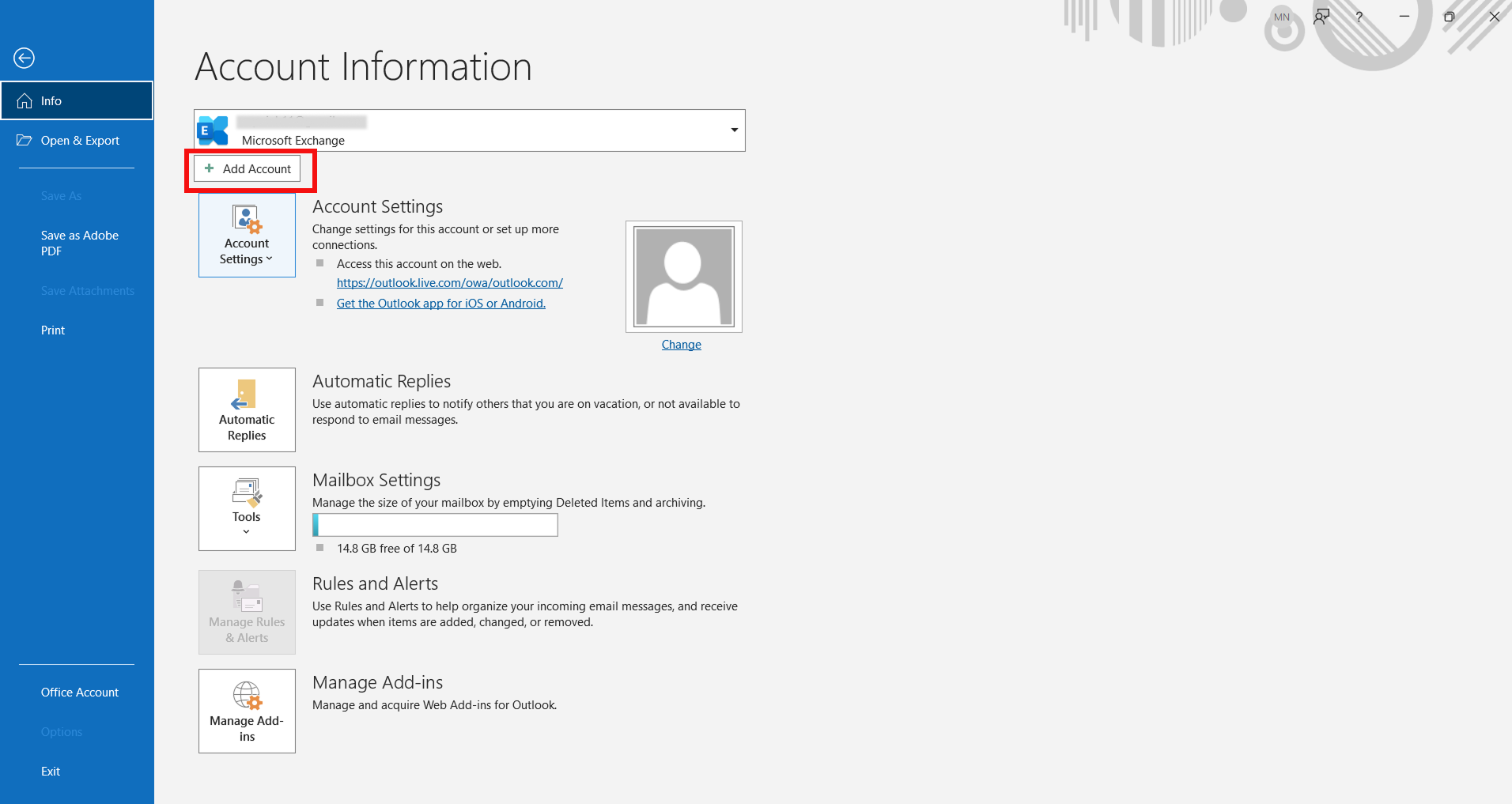
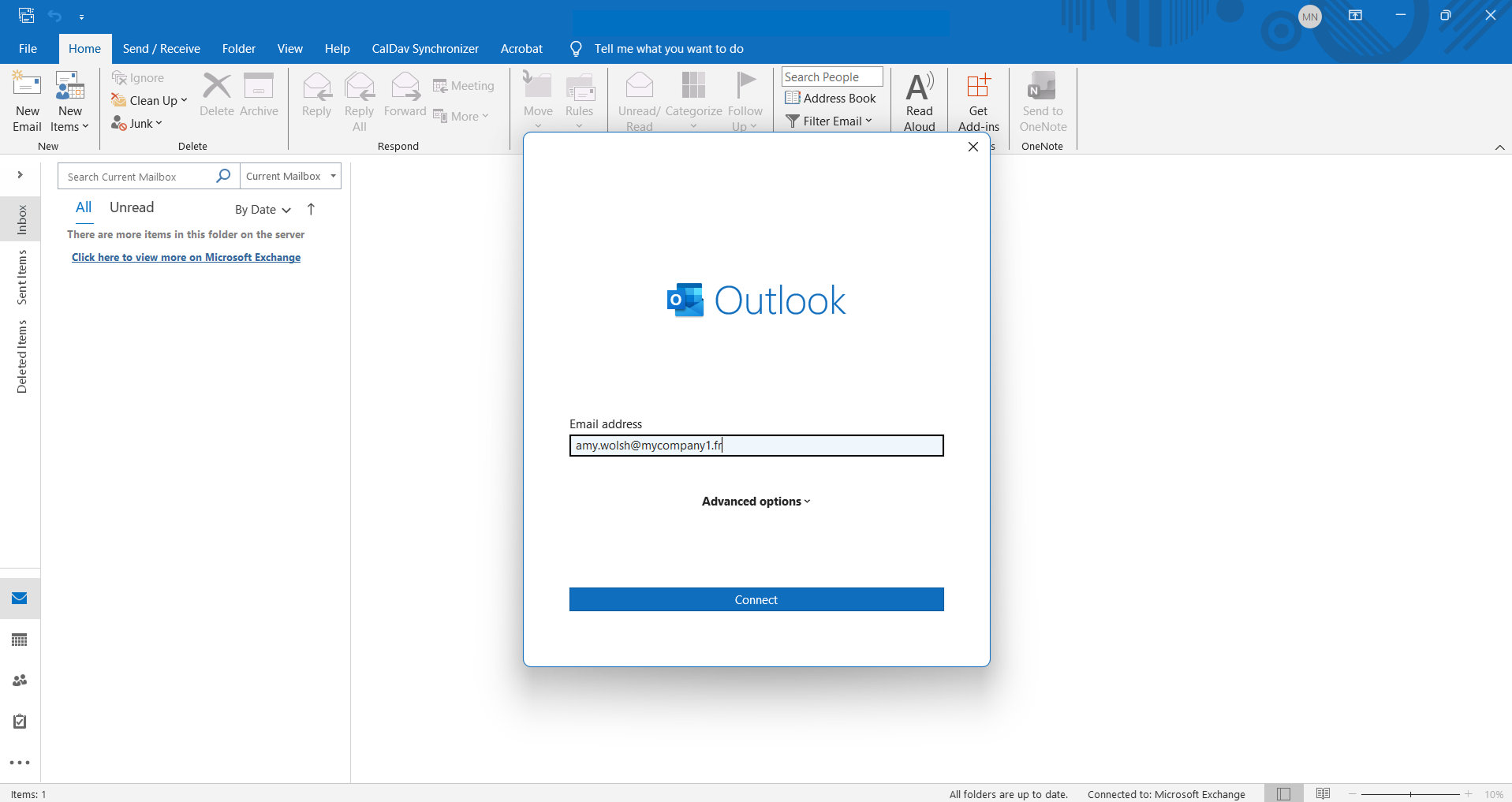
- Enter your email address and then click on "Connect"
- Select "IMAP"
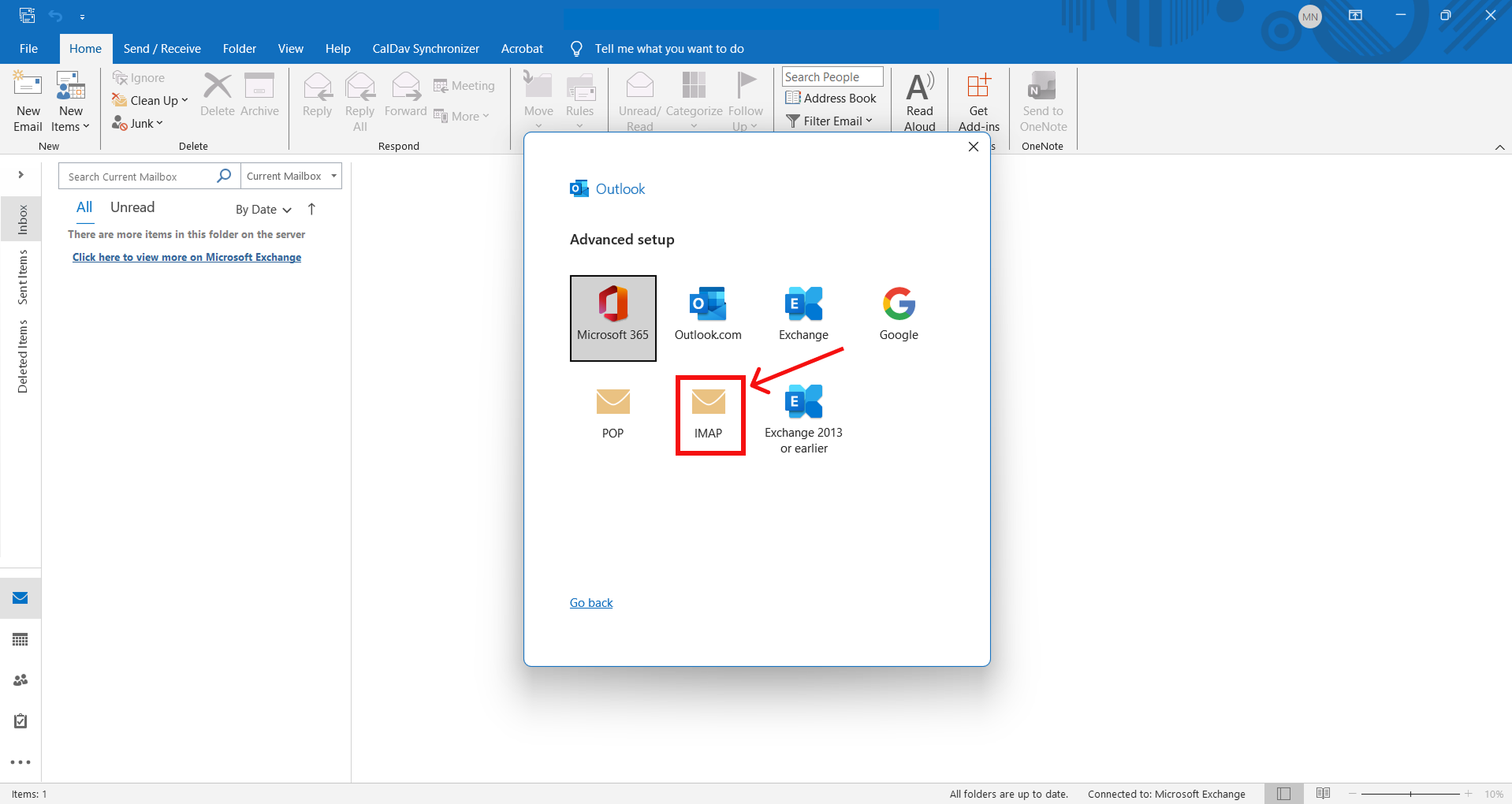
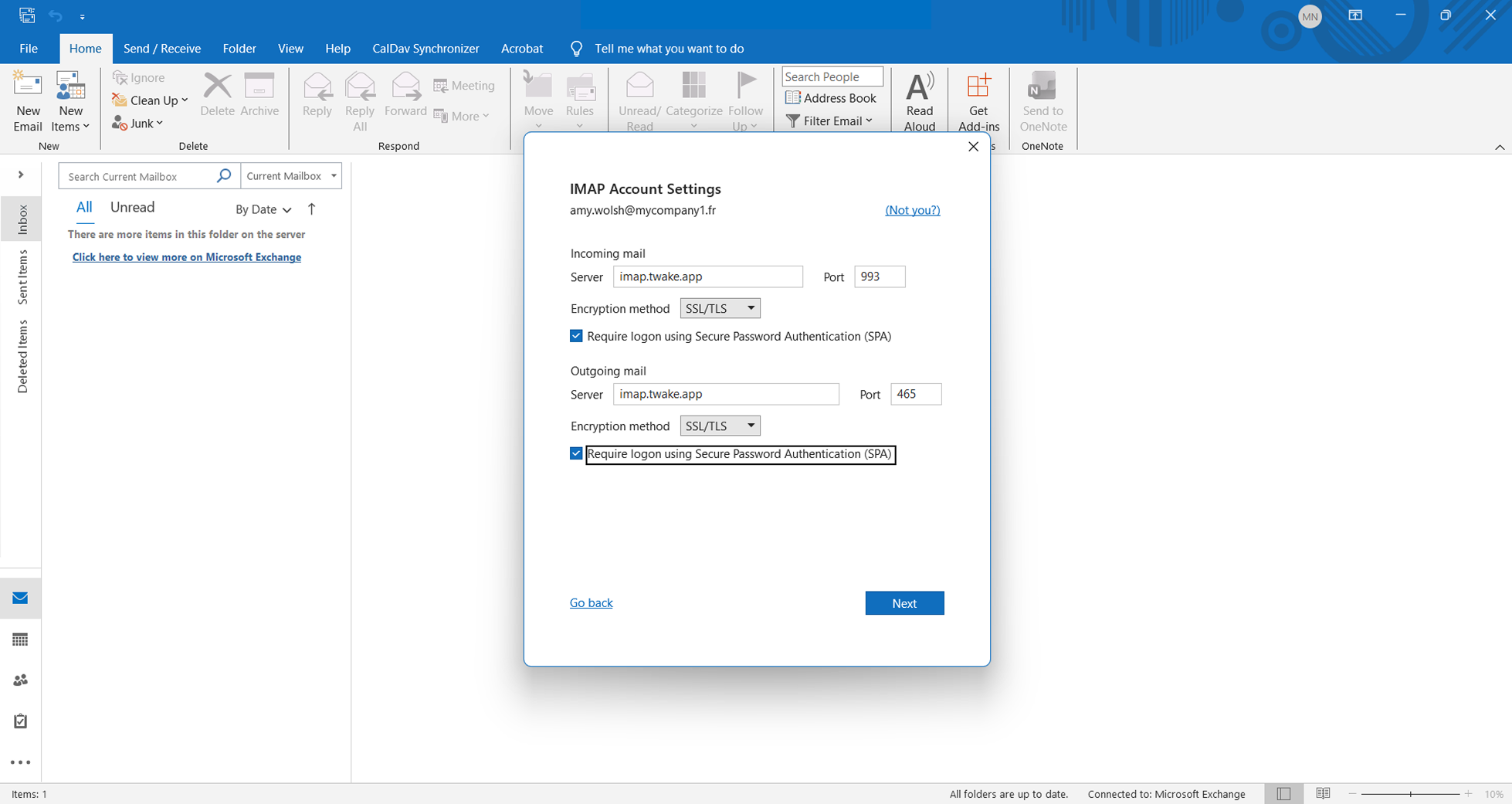
- Technical connection data
Manually enter the technical connection data as shown below. Fill in all fields and click "Next".
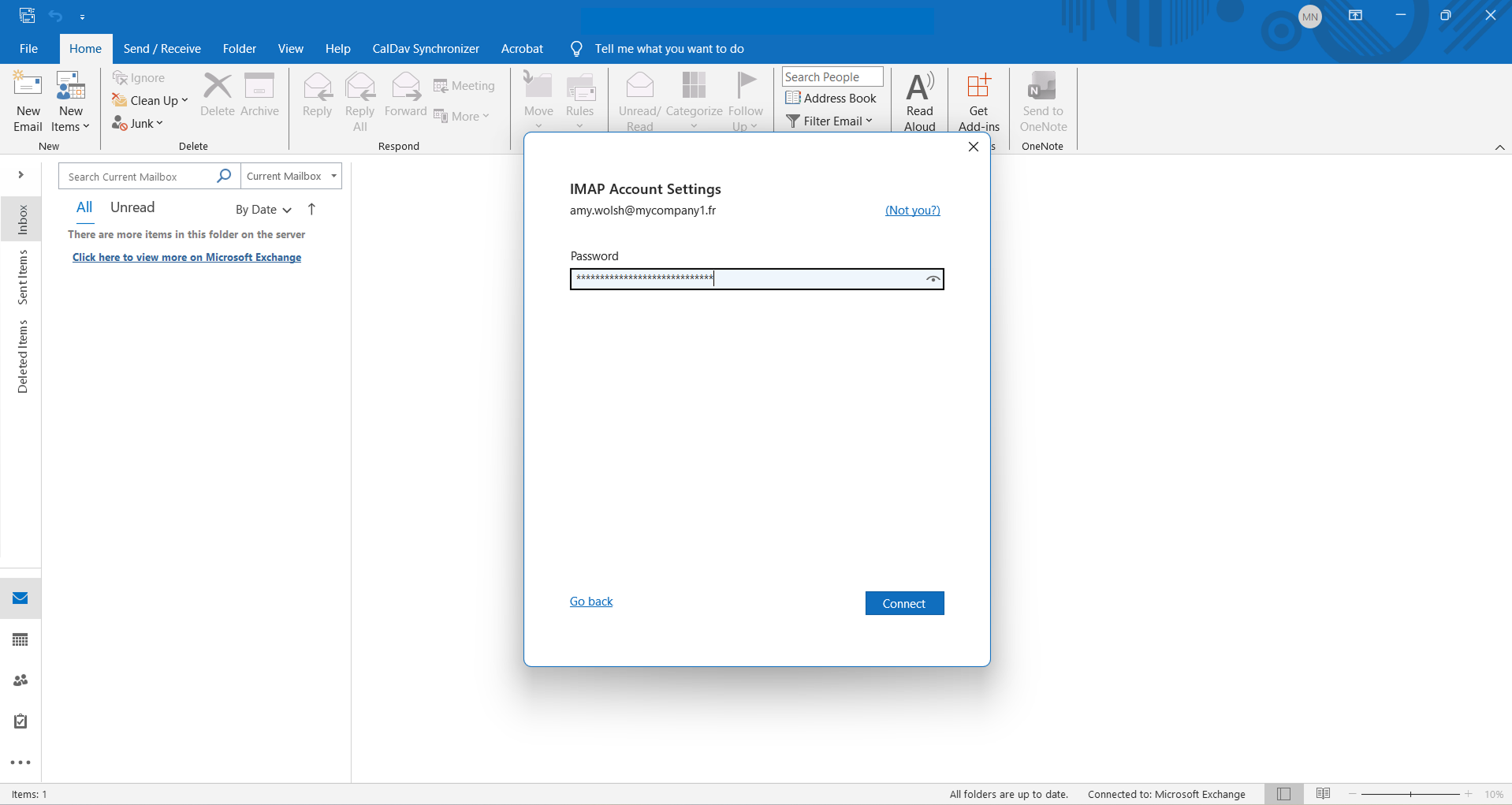
- Enter the application password (previously obtained when creating the application account). Then click "Connect".
- Un-check the 2 boxes "Let me set up my account manually" and "Set up Outlook Mobile on my phone, too", then click "Done".
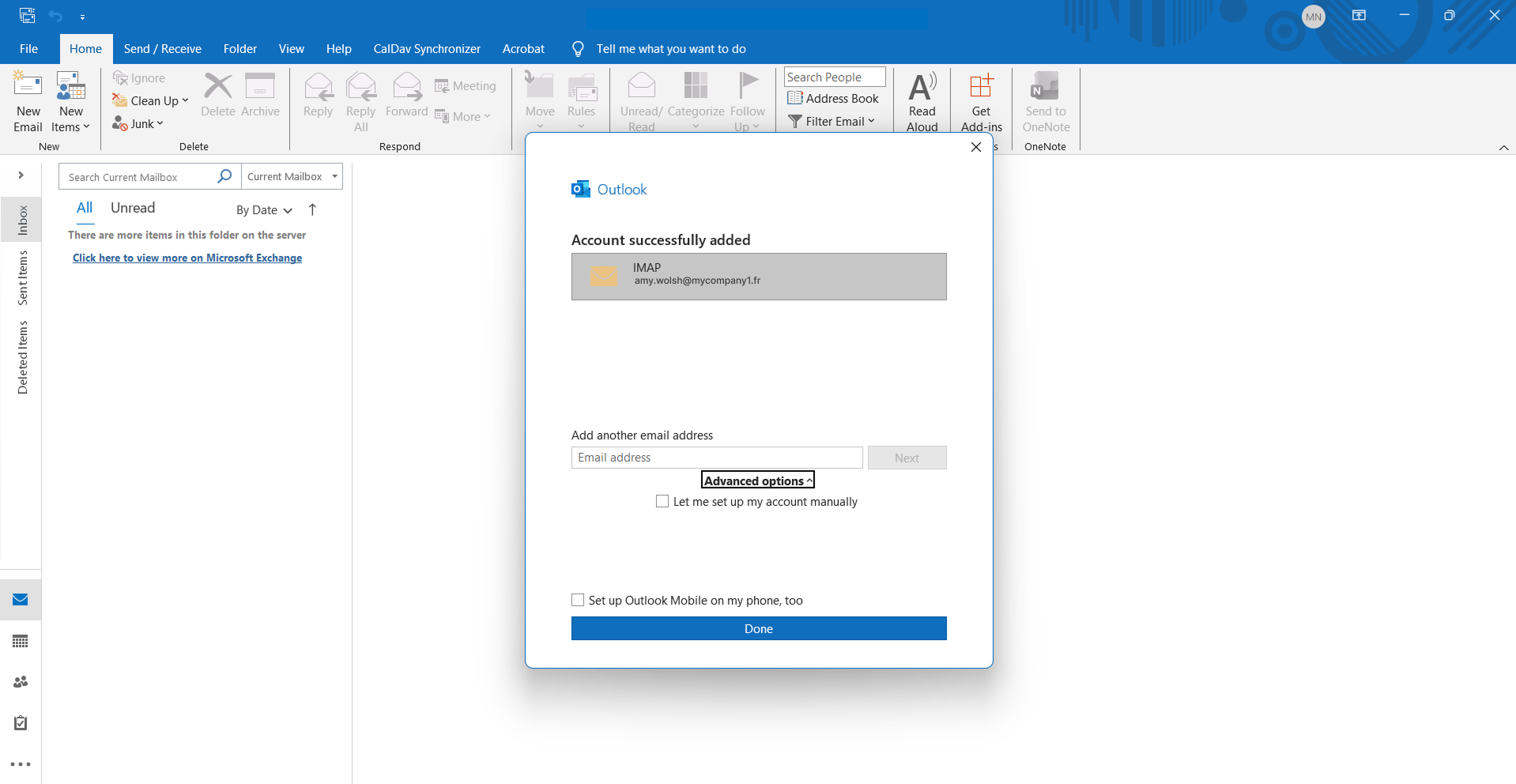
The mailbox has been successfully added to Outlook.