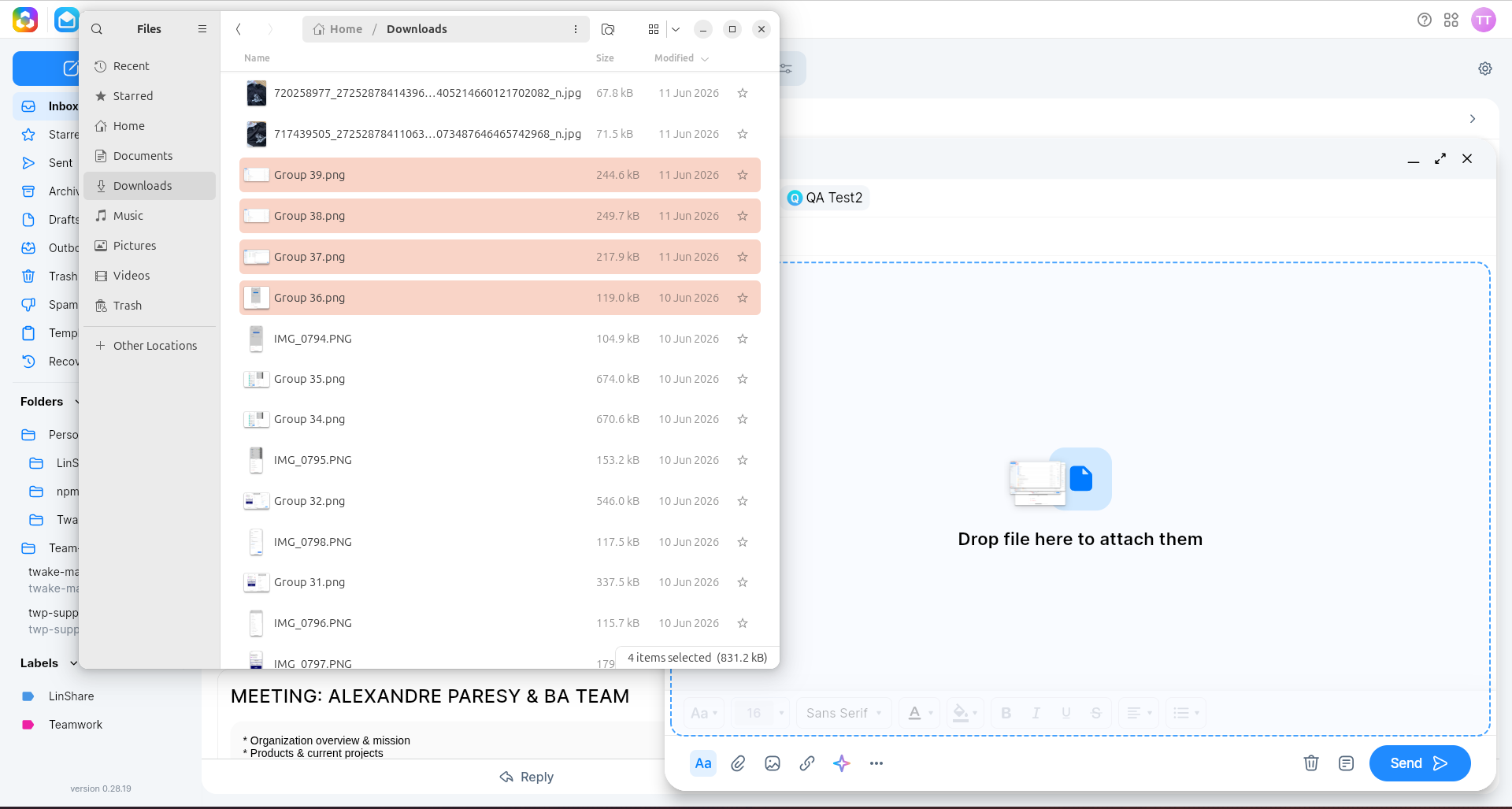
Using drag and drop in Twake Mail
Drag and drop helps you move emails, recipients, text, and attachments quickly without using extra menus.
Drag and drop emails
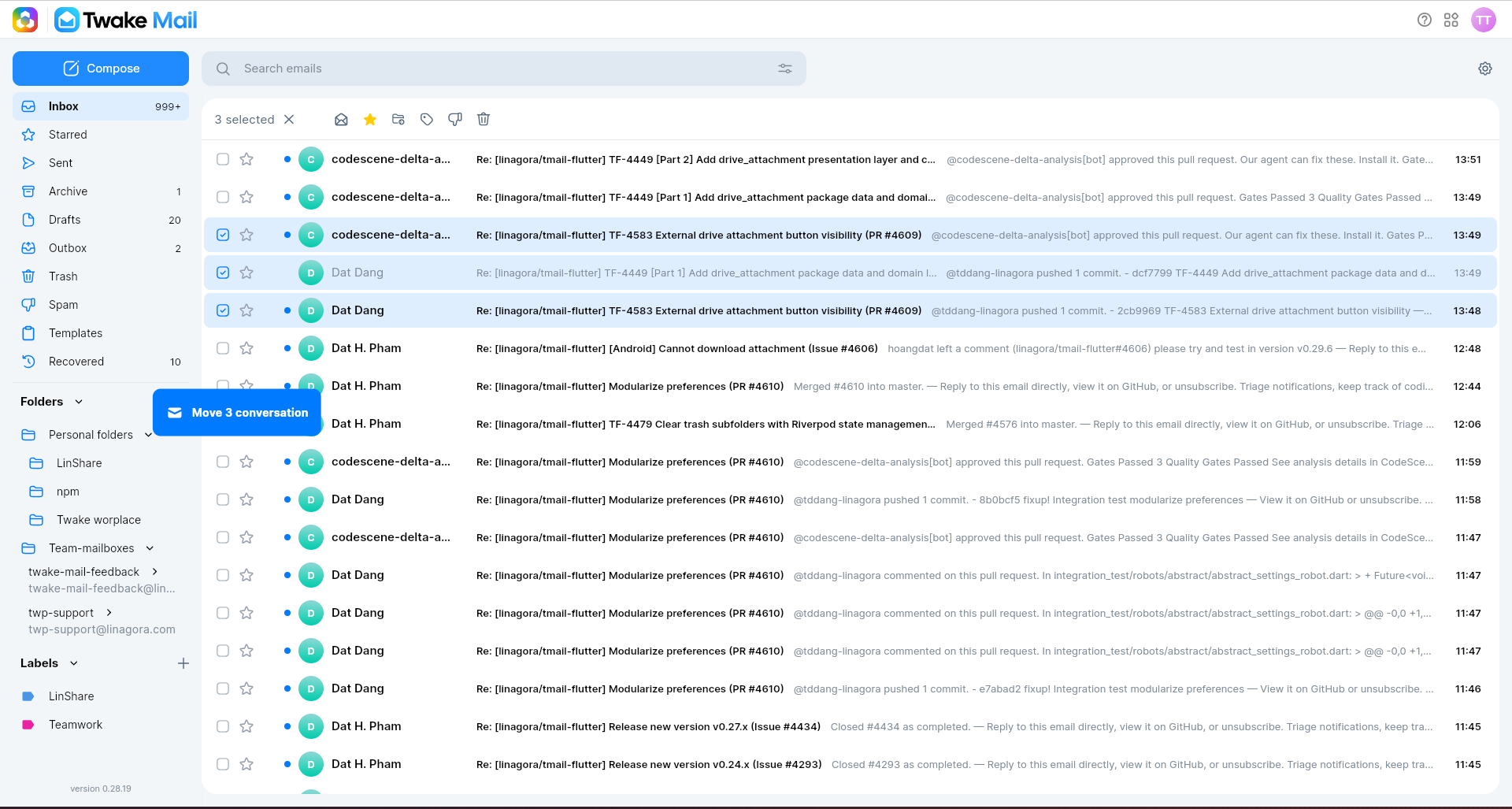
You can use this feature to move an email to another folder or label.
- Open the folder that contains the email you want to move.
- Select emails that your want to move
- While holding the email, drag it to the destination folder or label.
- Release your finger to drop the email.
The email will be moved to the selected folder or label:
Drag and drop recipients
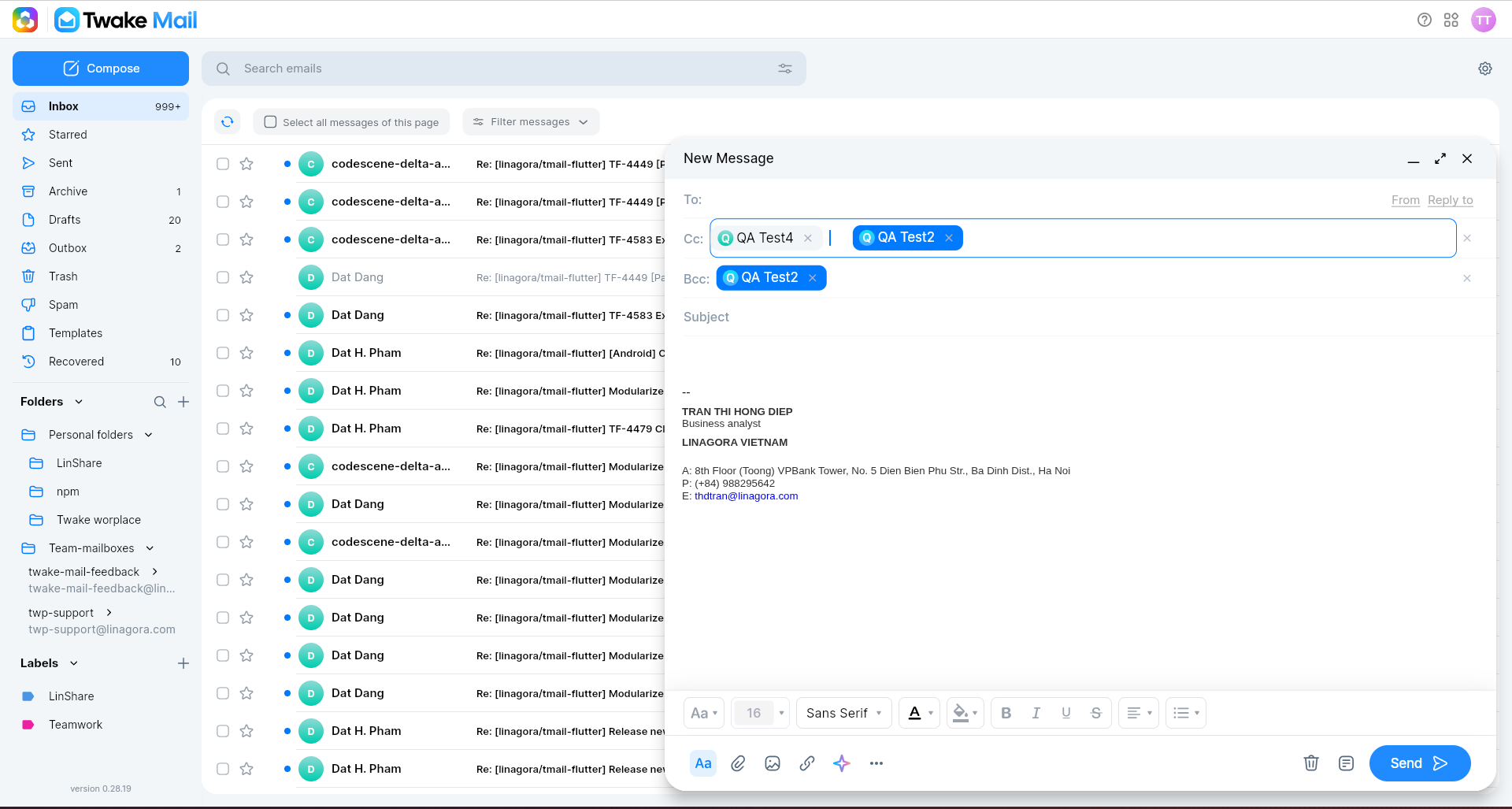
This feature allows you to move recipients easily between the To, Cc, and Bcc fields when composing an email.
- Start composing a new email or open an existing draft.
- Go to the recipient area.
- Click and hold the recipient’s email address.
- Drag it to the desired field, such as To, Cc, or Bcc.
- Release your finger or mouse button.
The recipient will be moved to the new field.
Drag and drop text
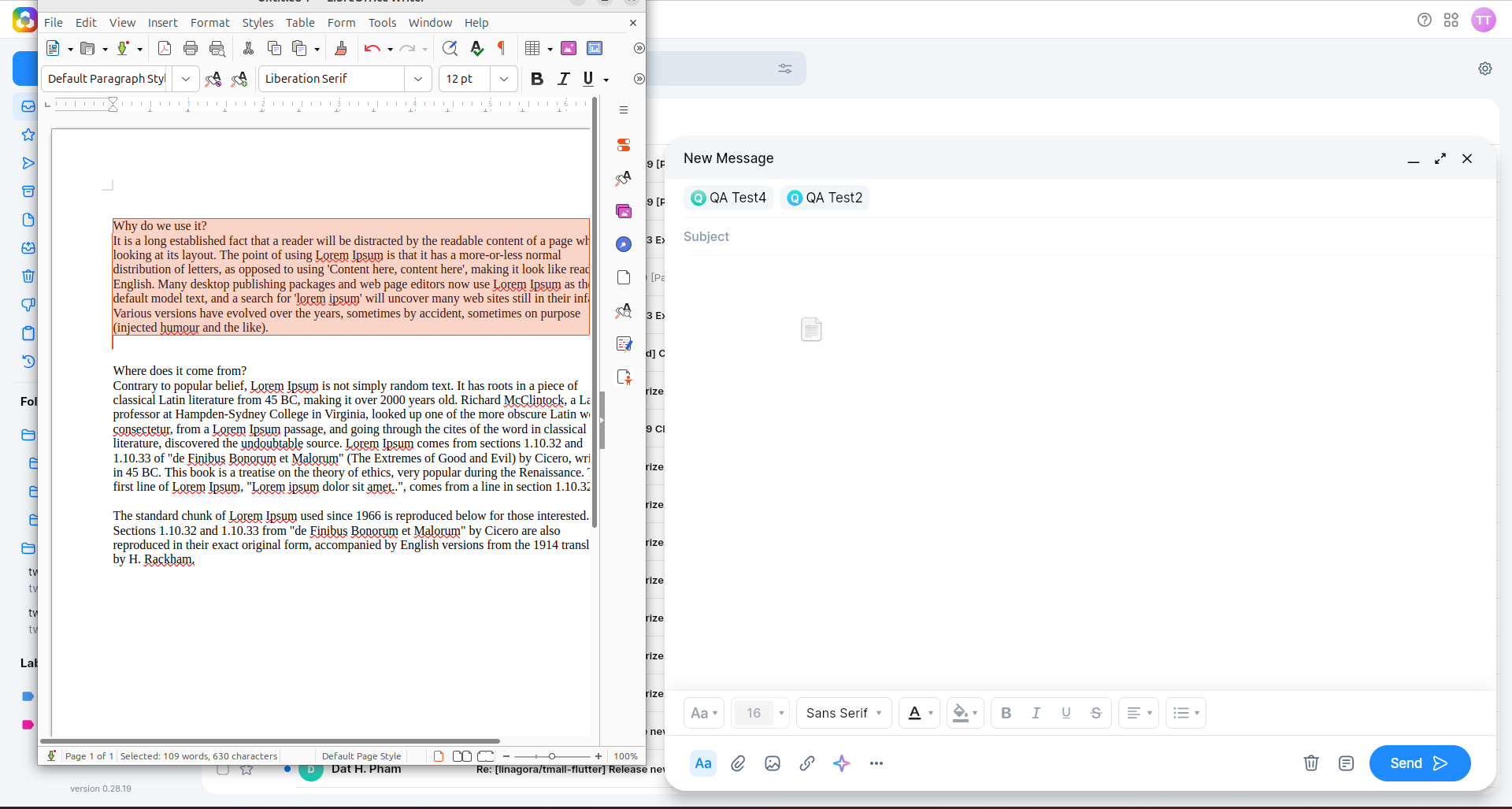
You can drag text from another application and drop it directly into the email composer or message box.
- Open the source application, such as a web page, document, or another app.
- Select the text you want to copy.
- Tap and hold, or click and hold, the selected text.
- Drag the text into the email composer.
- Release your finger or mouse button.
The text will be inserted into the composer.
You can also drag and drop text within the email composer while writing your message.
Drag and drop attachments from a previous email
You can reuse an attachment from a previous email by dragging it into a new email composer.
- Open the email that contains the attachment.
- Click and hold the attachment.
- Drag it into the email composer.
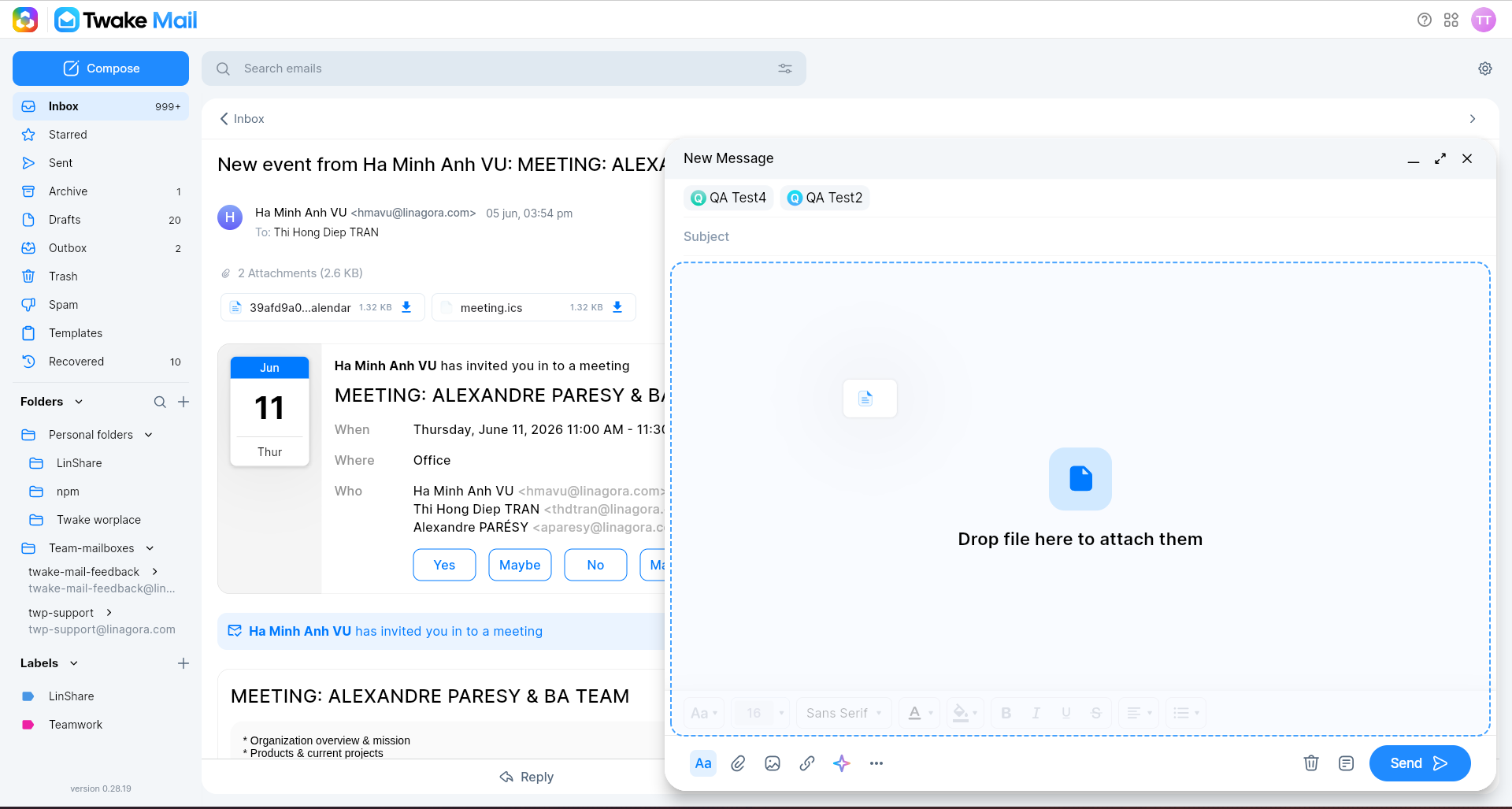
- When the composer is highlighted and displays Drop file here to attach, release the attachment.
The file will be added to the email.
Drag and drop attachments from your computer
You can attach files from your computer by dragging them into the email composer.
- Start composing a new email or open an existing draft.
- Open File Explorer on your computer.
- Locate the file you want to attach.
- Click and hold the file.
- Drag it into the email composer.
- Release the file.
If you drop an image, it will be added as an inline image.
If you drop a non-image file, it will be added as an attachment.
You can also select multiple files and drag them into the composer at the same time.