Work with Online Office Files (OnlyOffice)
OnlyOffice integration is available on paid Twake Workplace plans. For more details: Subscription Plans
Twake Workplace includes integrated online office editors powered by OnlyOffice, allowing you to create, edit, and collaborate on documents directly from Twake Drive.
Supported file types:
- Text Document (.docx)
- Spreadsheet (.xlsx)
- Presentation (.pptx)
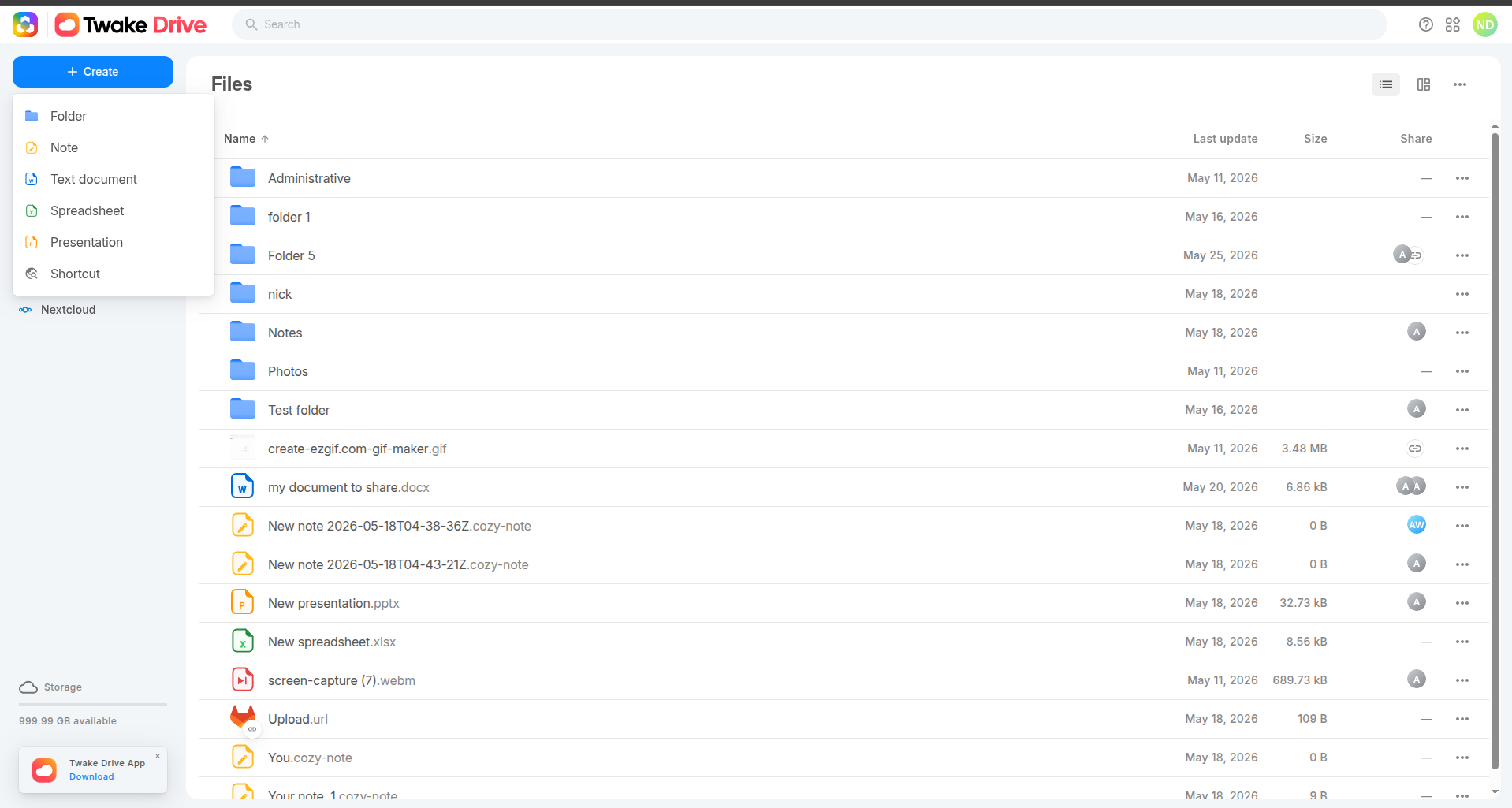
Create an Online Office File
You can create a new Text Document, Spreadsheet, or Presentation directly from Twake Drive.
Upload Existing Office Files
You can upload existing Office files and continue working on them online. After upload, the files are stored in Twake Drive and can be opened with the online editor.
👉 For detailed instructions about creating files and folders, see: How to add a file/folder in Twake Drive
Open and edit an Office File
To open an office file:
- Navigate to the file in Twake Drive.
- Double-click the file, or select Open from the available actions.
- The file opens in the corresponding OnlyOffice editor.
You can edit documents directly in your web browser without installing additional software.Changes are saved automatically while you work.
Share an Office File
Office files can be shared with other users through Twake Drive.
Shared users can access the file according to the permissions granted.
👉 For detailed sharing options and permission management, see: How to share file/folder
Real-Time Collaboration
Multiple users can work on the same document simultaneously.
Collaboration features include:
- Live co-editing
- Real-time cursor visibility
- Instant updates from collaborators
- Shared editing without creating multiple file versions
All changes are synchronized automatically.
Access Office Files from the Home Page
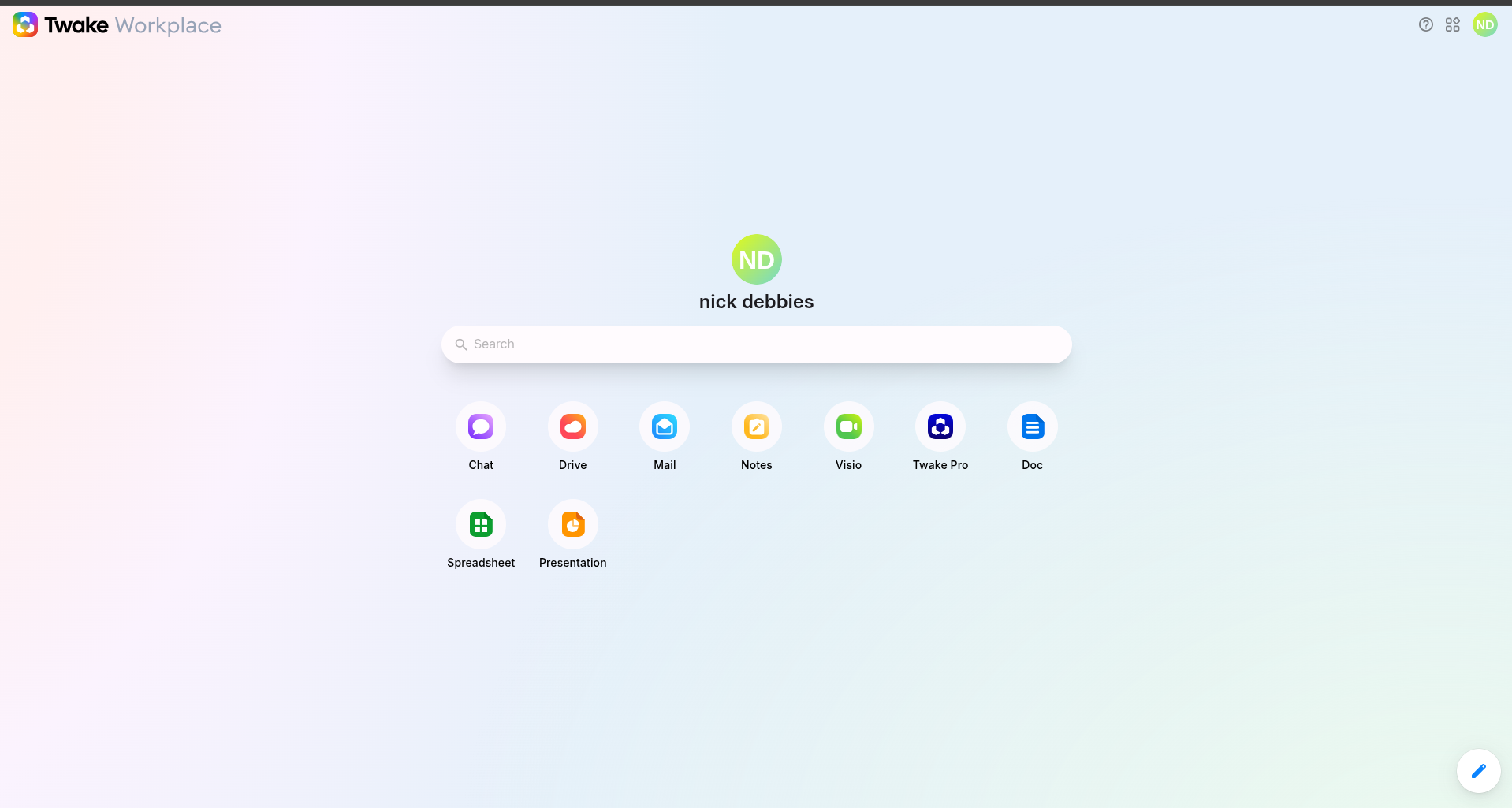
If your subscription includes OnlyOffice integration, you can create new office files directly from the Twake Workplace Home page.
- Open the Twake Workplace Home page.
- Click one of the office application shortcuts:
- Doc – Create a new Text Document
- Spreadsheet – Create a new Spreadsheet
- Presentation – Create a new Presentation
- A new file is created and opened automatically in the corresponding OnlyOffice editor.
Open Office Files from the Desktop Client
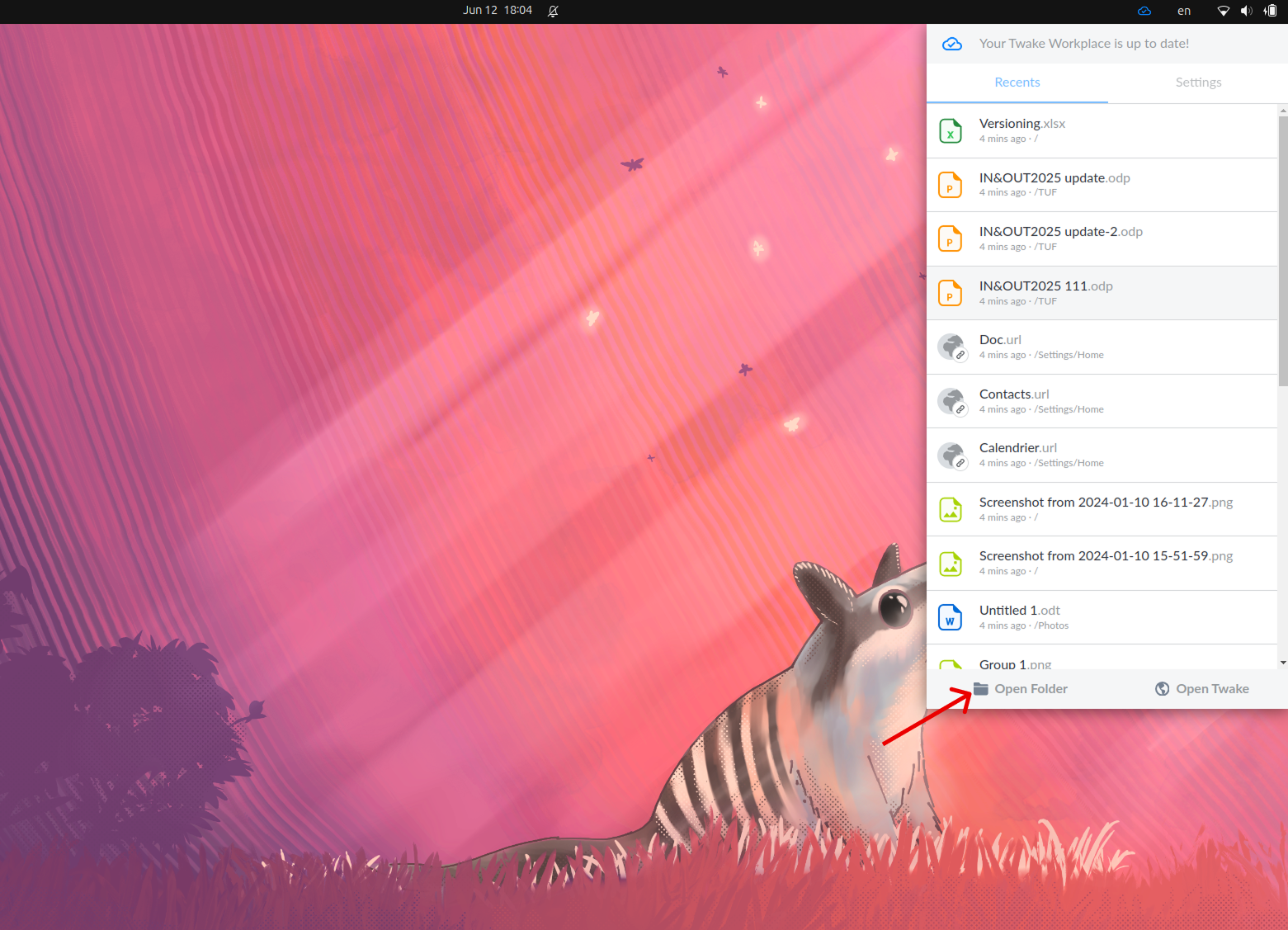
When using the Twake Desktop Client, office files can be opened directly on your computer using locally installed applications.
Changes made locally can then be synchronized back to Twake Drive according to your desktop client configuration.