
Create and manage public calendars
A public calendar is a calendar that other members can search to check your availability, or subscribe to. Subscribers can view the calendar’s events and their details of the public calendars. ou can create multiple public calendars for different topics, such as training sessions, holidays, or project milestones.
You can create a new public calendar or make an existing calendar as public:
Create a public calendar
- Open Twake Calendar.
- In the left sidebar, click + next to My calendars.
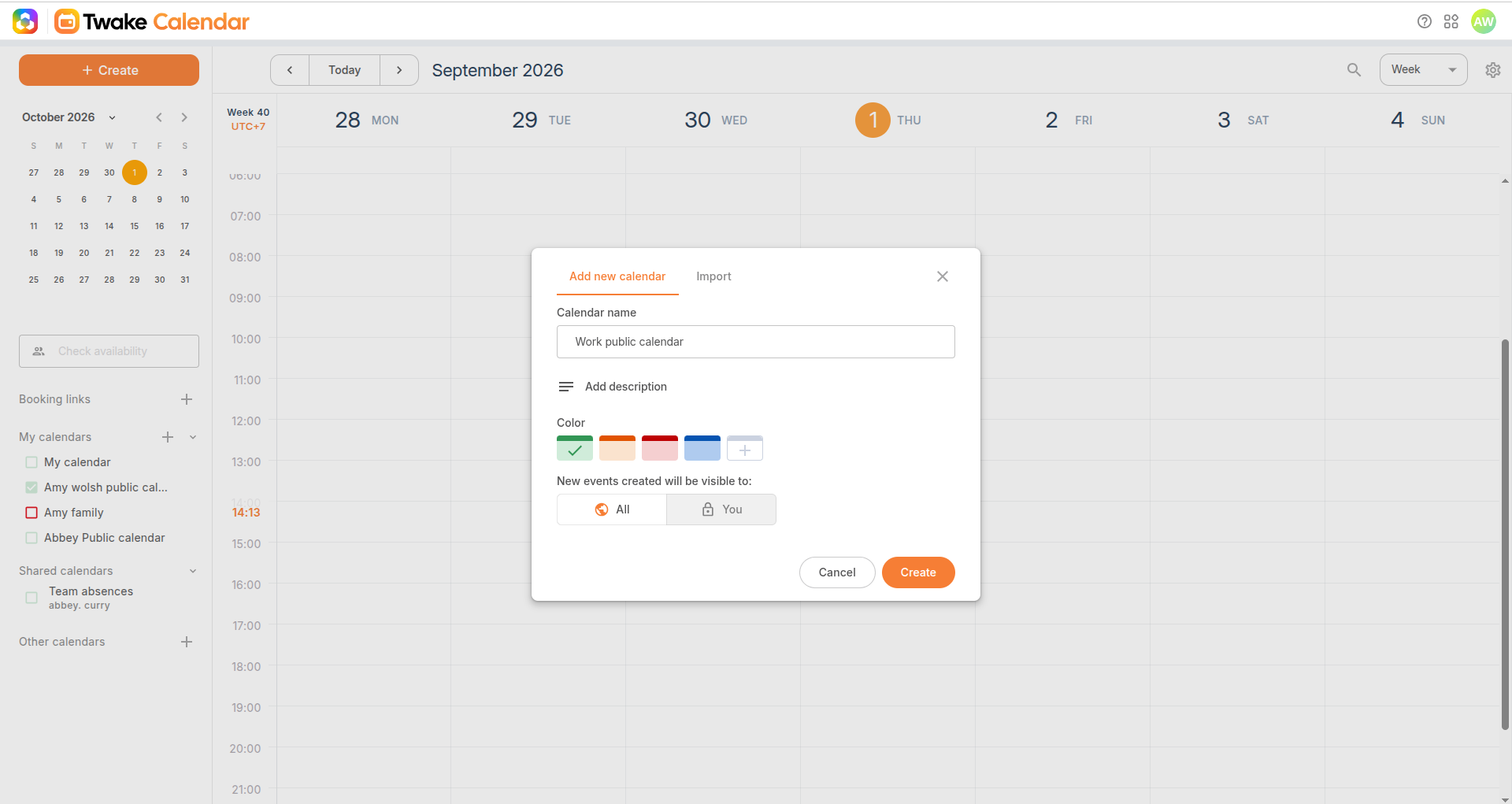
- In the Add new calendar tab, enter a Calendar name.
- Optionally, click Add description to explain the calendar’s purpose.
- Choose a color to distinguish its events from your other calendars.
- Under New events created will be visible to, select All.
- Click Create.
The calendar appears under My calendars.
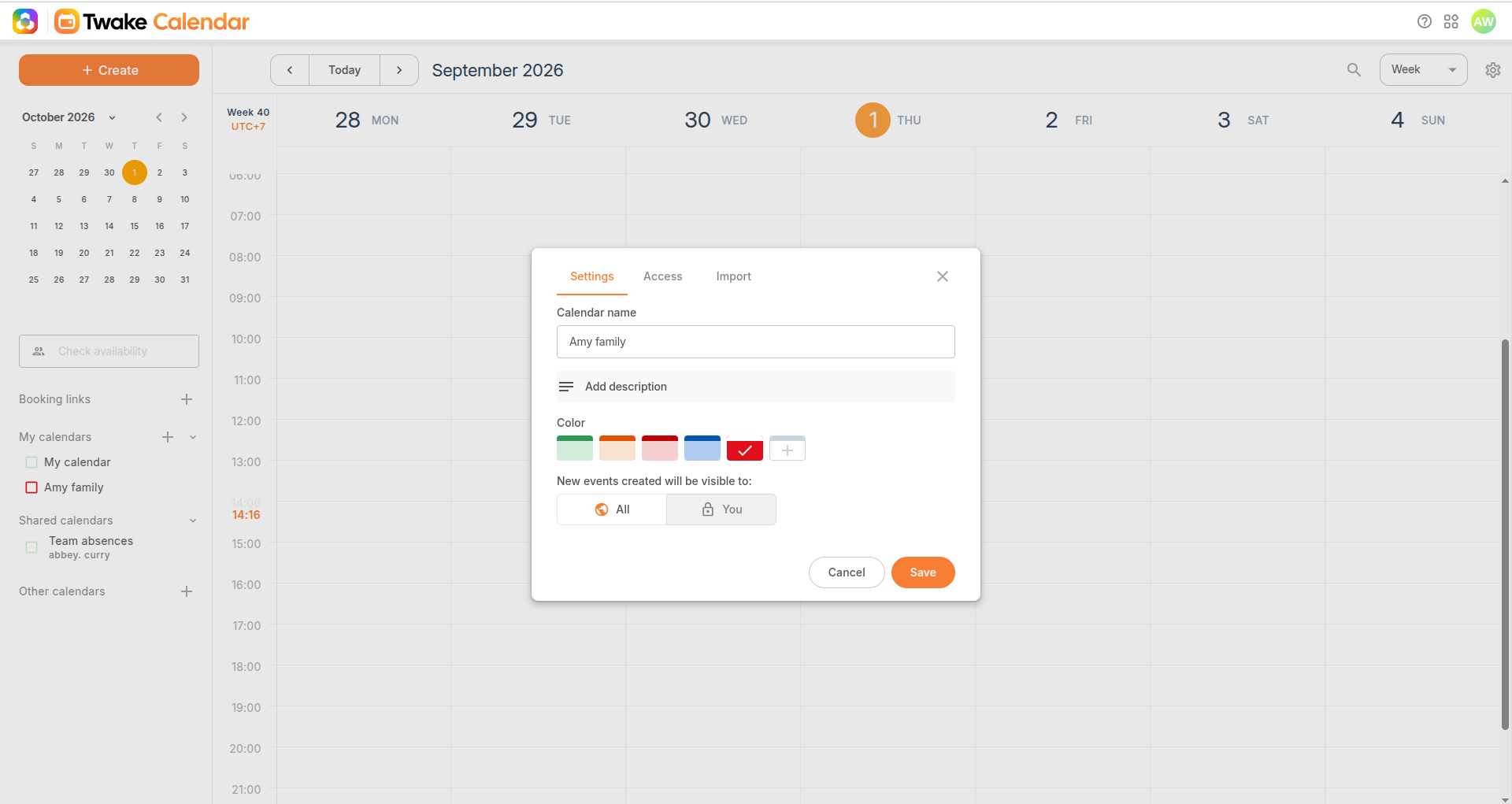
To make a current calendar as public, click 3-dot button next to the calendar then select "Modify", then under New events created will be visible to, select All:
Add events to the public calendar
- Click + Create, or select an empty time slot.
- Enter the event title, date, and time.
- Click More options.
- In the Calendar field, select your public calendar.
- Add any other details, such as a location or description.
- Check the Visible to setting.
- Click Save.
Learn more: Create an event.
To Edit or Delete public calendar, see Manage a calendar
Frequently asked questions
Does “All” mean anyone on the internet can see my calendar?
The All setting controls event visibility for people who have access to the calendar. It does not automatically grant public access.
Can I create multiple public calendars?
You can create separate calendars for different topics, such as training, holidays, or project schedules. Use distinct names and colors to make them easy to identify.
Why is an event missing from this calendar?
Check which calendar was selected when the event was created. Also make sure the checkbox beside the calendar’s name is selected in the left sidebar so its events appear in your view.