Manage member's permission
Group owners and administrators can assign roles to control what members can do in a group chat.
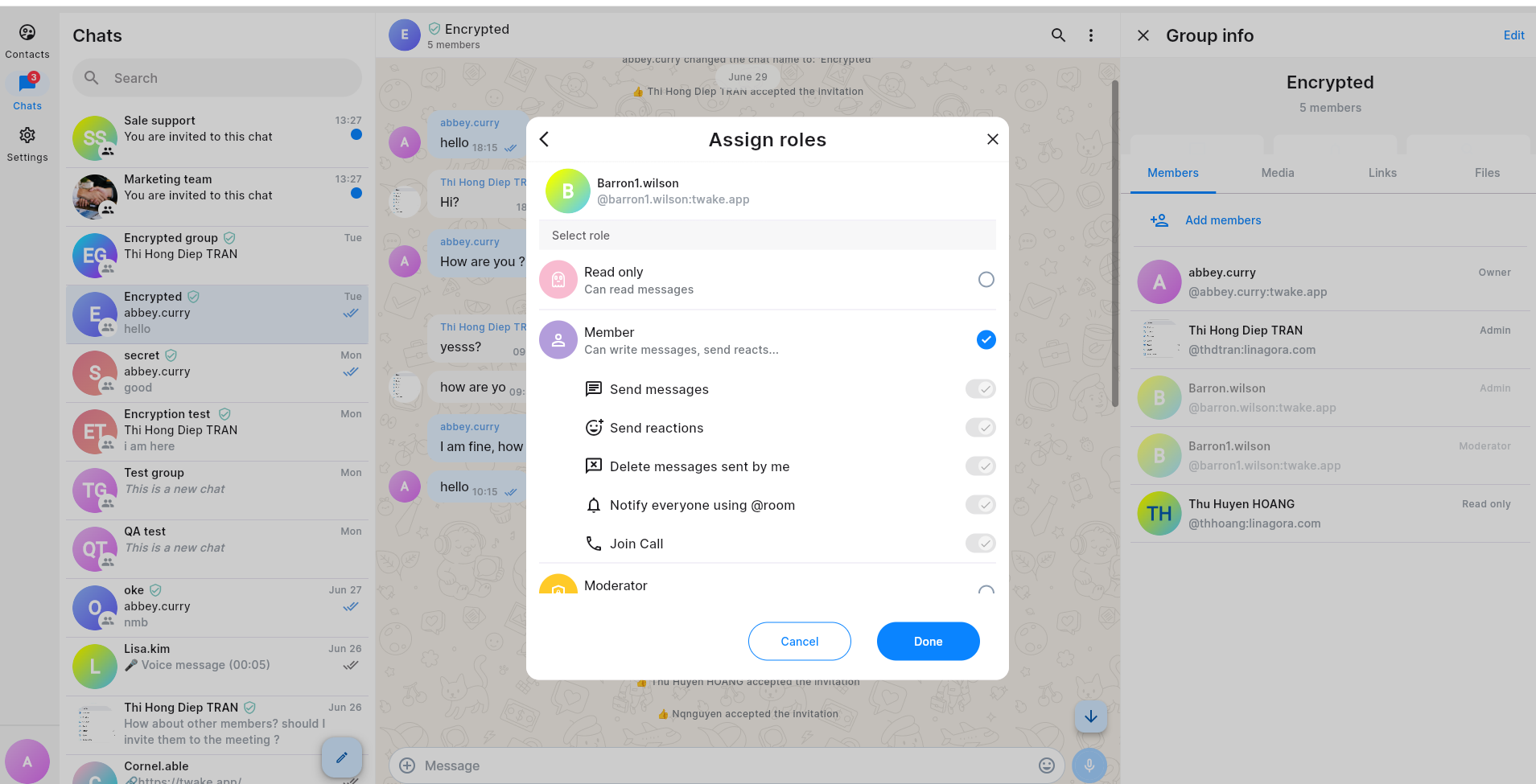
Assign Admin/Moderator role to a member
- Open the group chat.
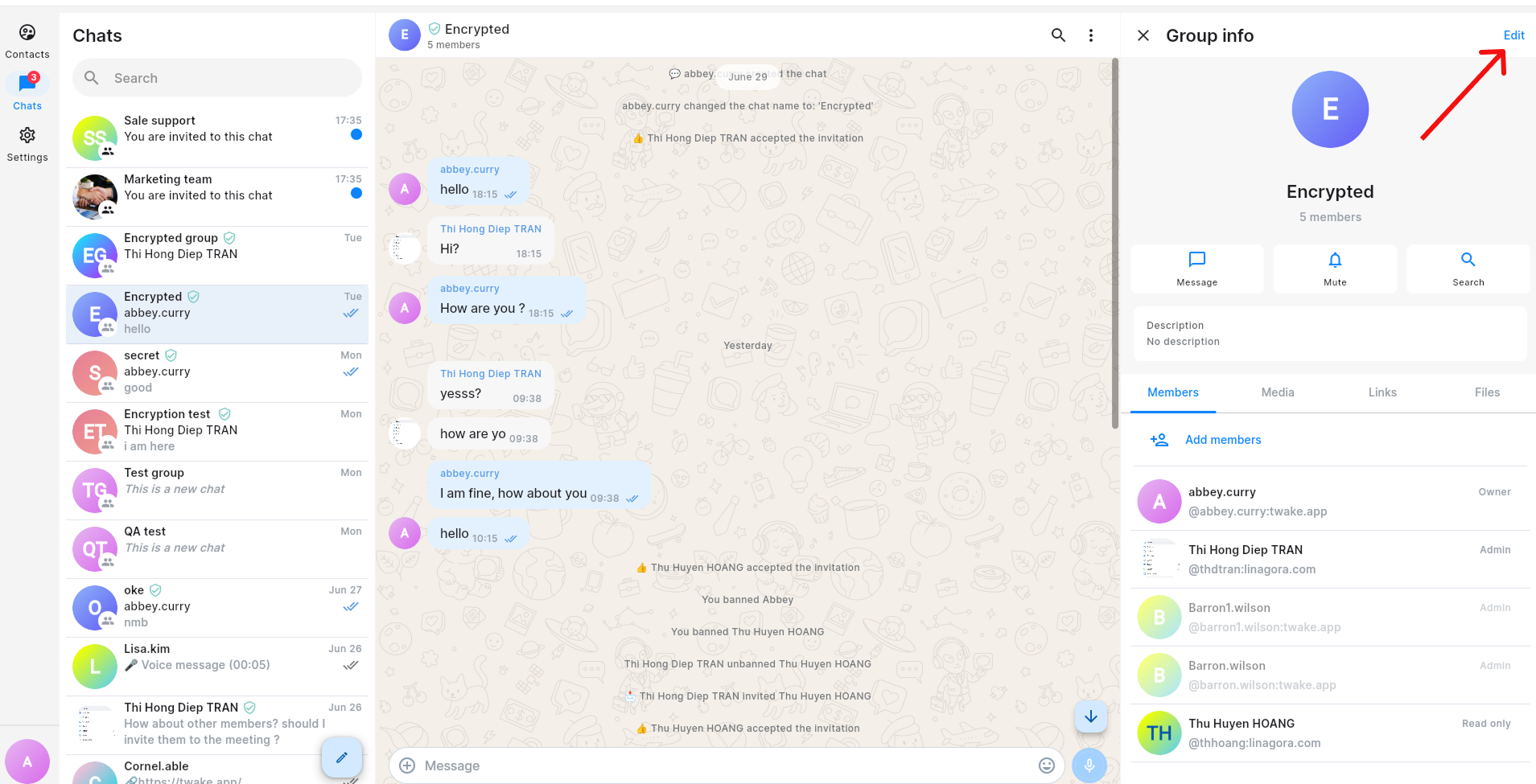
- Click the group name at the top of the conversation to open Group info.
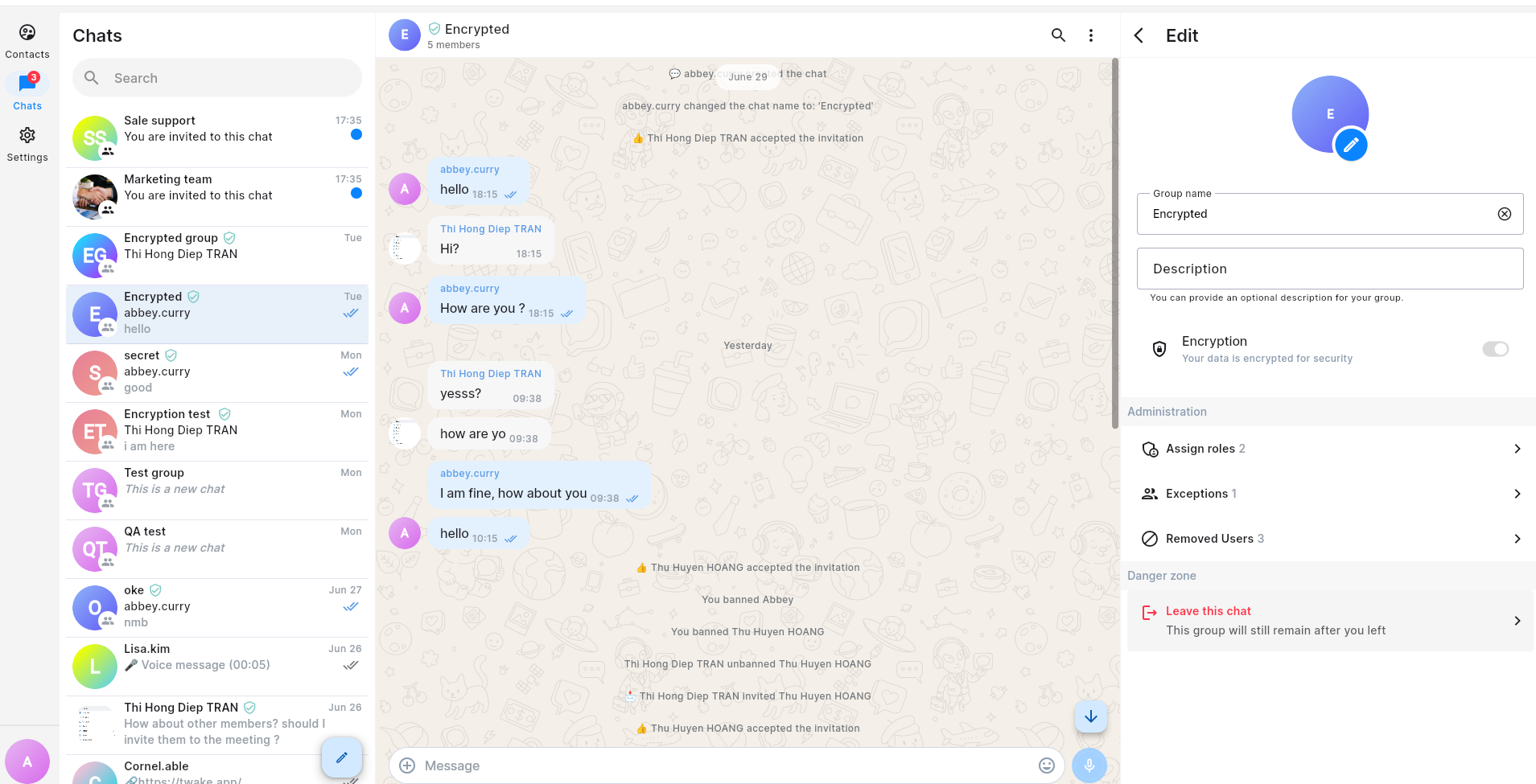
- Click Edit.
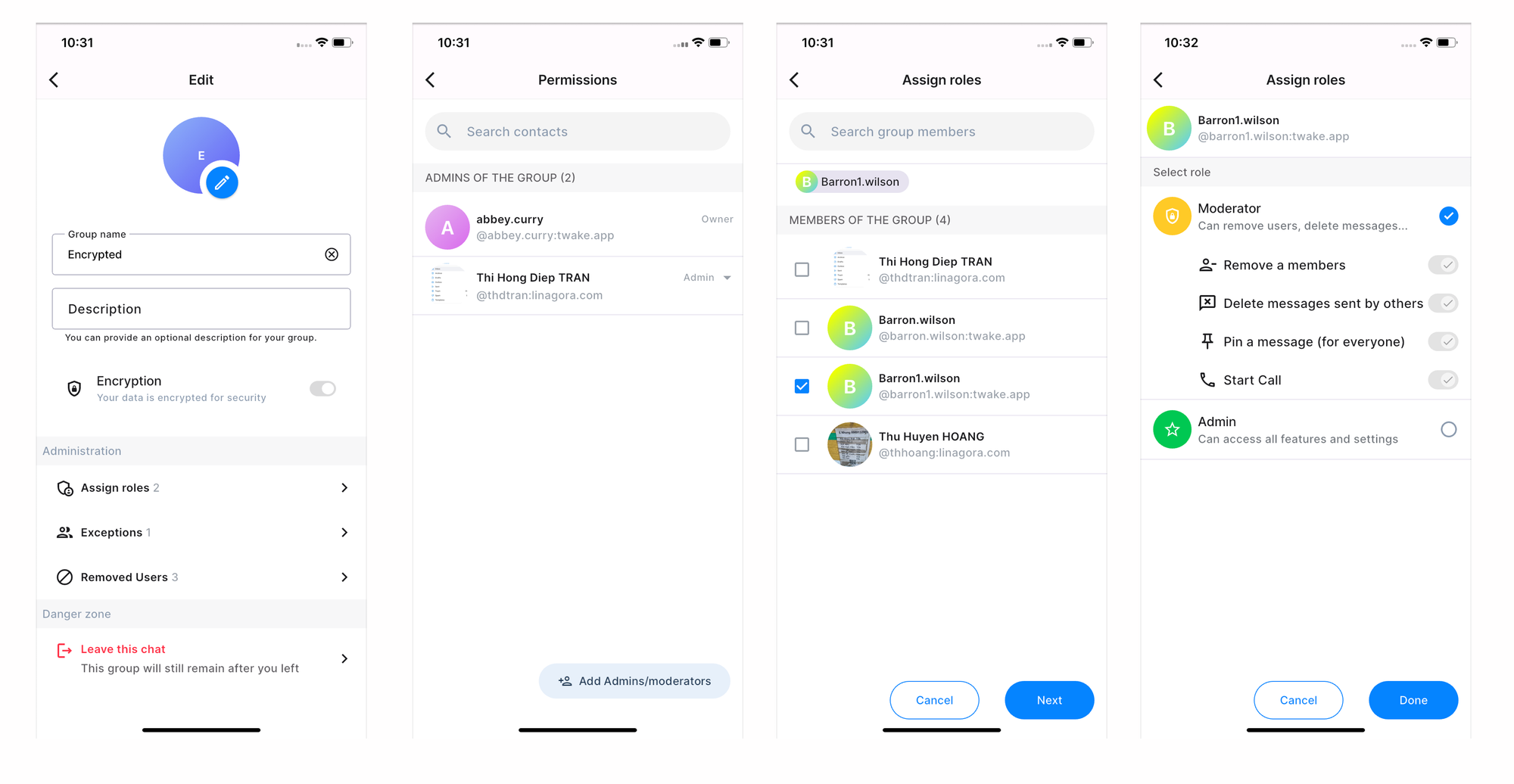
- Under Administration, select Assign roles. You will see the current admins of group
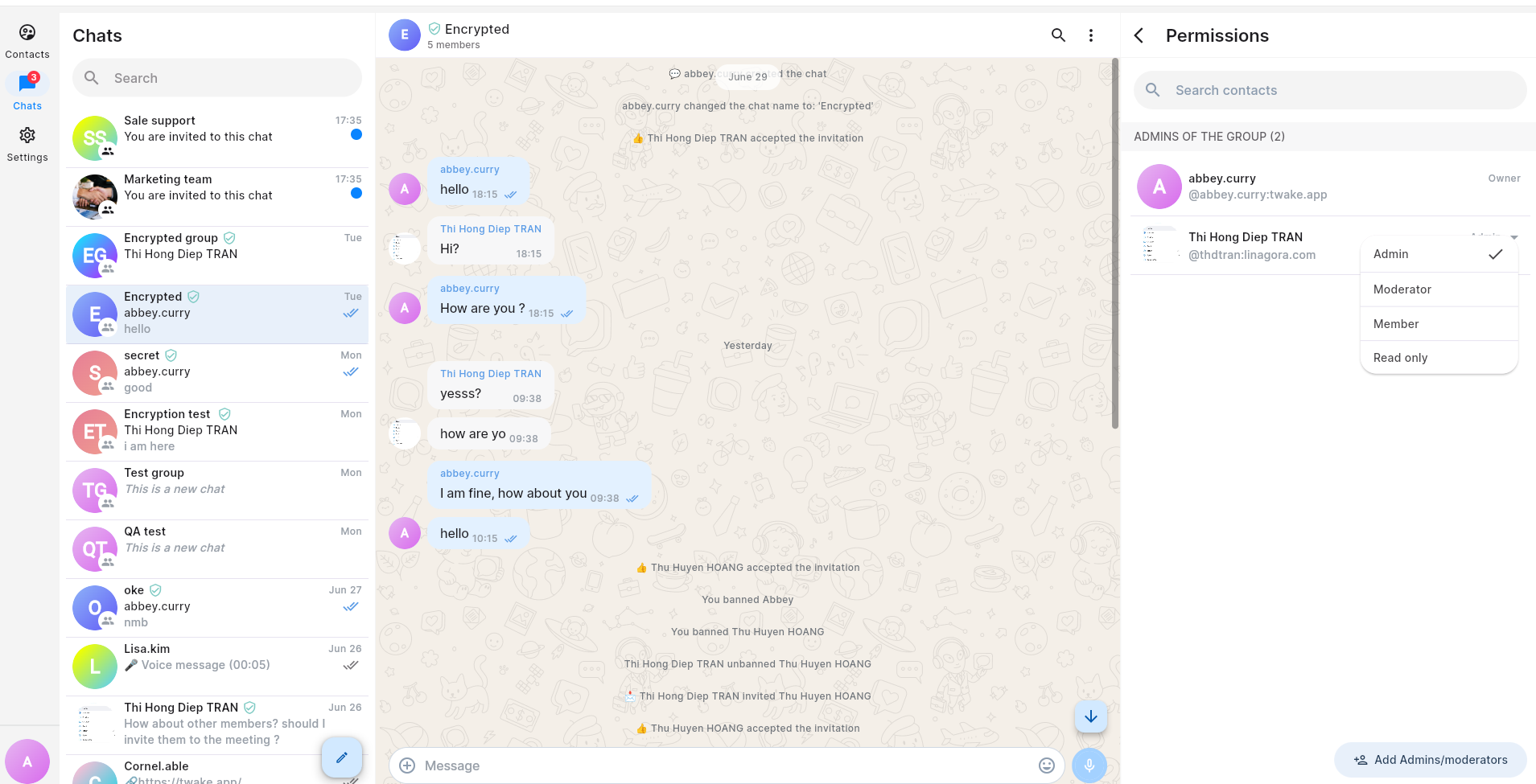
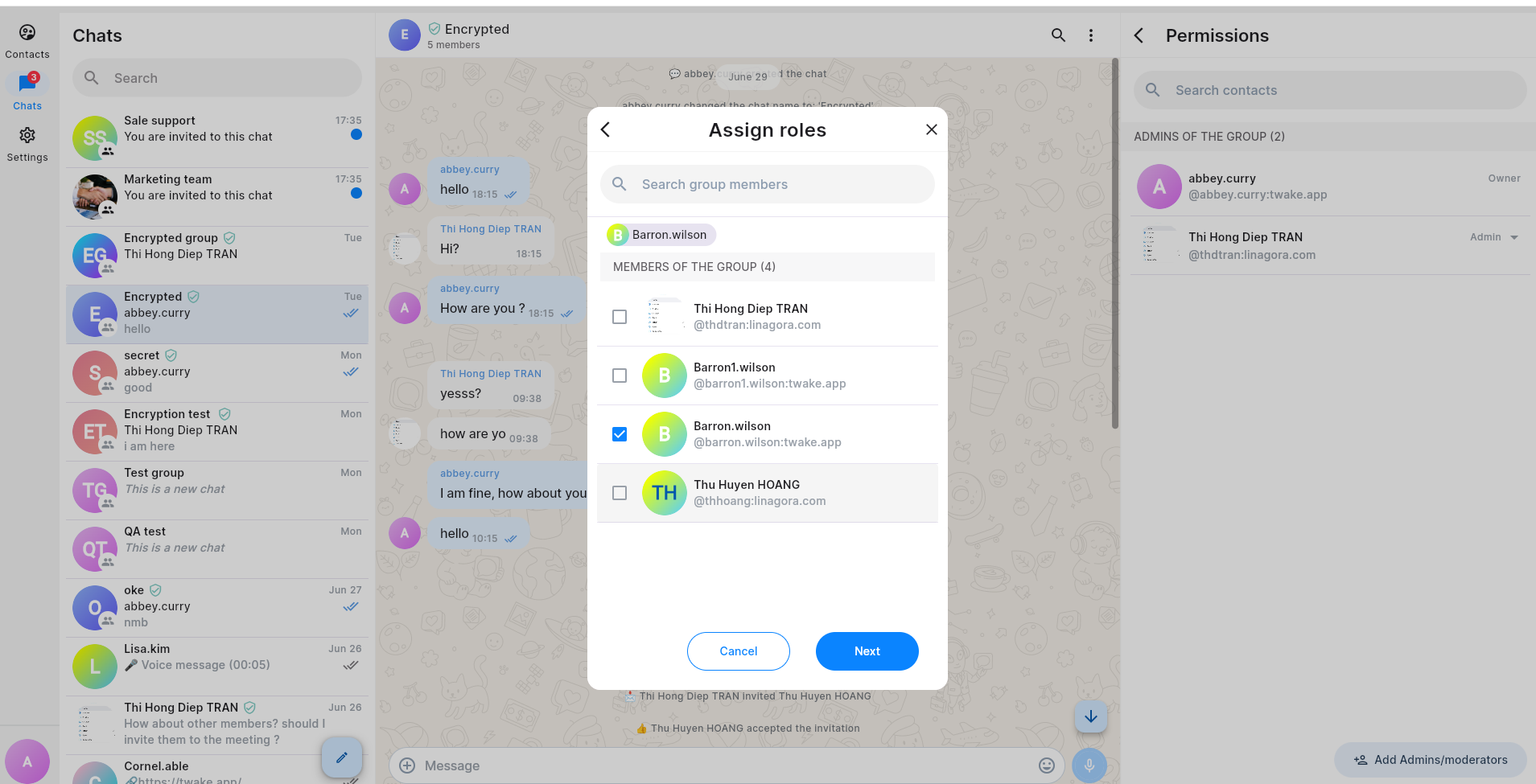
- Click Add Admins/Moderators
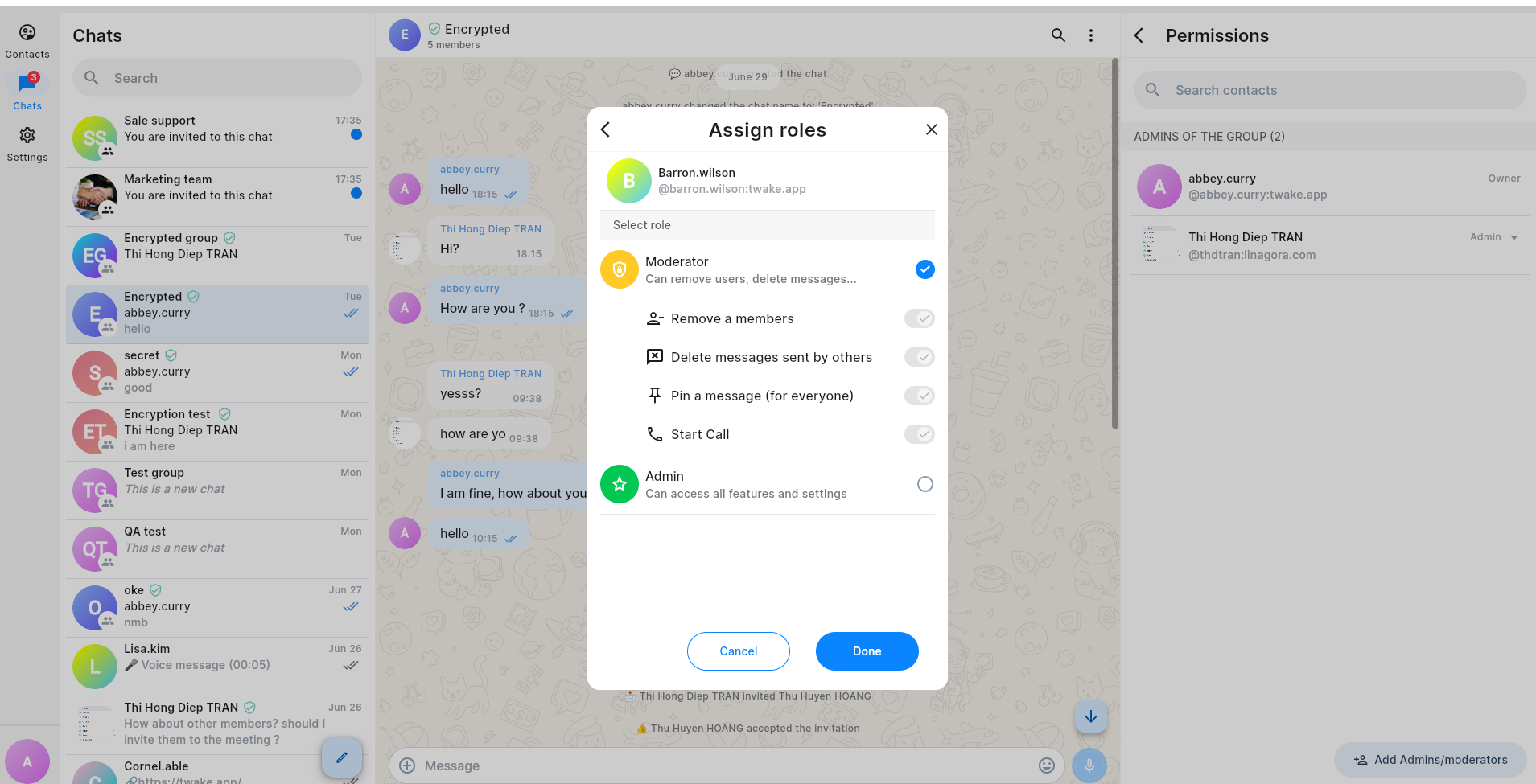
- Select the member then select appropriate role
- Click Done to save your changes.
The new permissions take effect immediately.
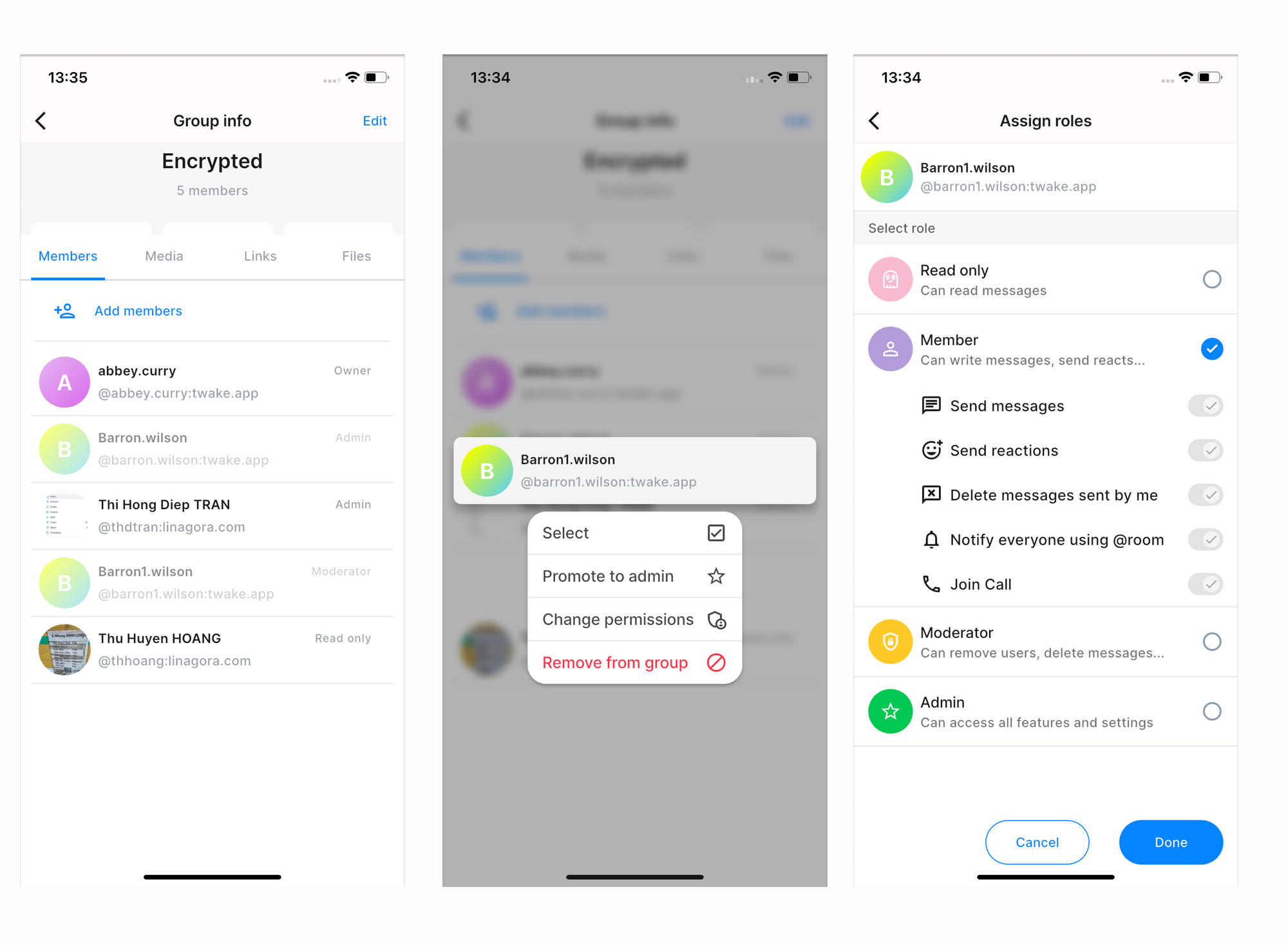
On mobile app:
Change a member's role
- Open Group info
- Right click the current role displayed next to the member's name.
- Select option: "Change permission"
- Select appropriate role then click button "Done" . The updated permissions are applied immediately.
You can also select option "Promote to admin" to quickly assign admin role to a member
Available roles
Read only
Members with the Read only role can:
- Read messages.
- Invite people to the group
They cannot send messages, react to messages, or join calls.
Member
Members with the Member role can:
- Send messages.
- React to messages.
- Delete their own messages.
- Start group calls.
Moderator
Moderators can perform all Member actions, plus:
- Remove members from the group.
- Delete messages sent by other members.
- Pin messages for everyone.
- Start group calls.
Admin
Admins can access all features and settings:
- Change the group name.
- Change the group description.
- Change the group avatar.
- Assign roles to eligible members.
Owner
Owner can perform all Admin actions, plus:
- Enable encryption for group chat
Each group chat has only 1 owner, to transfer ownership to another member, see : Transfer group ownership
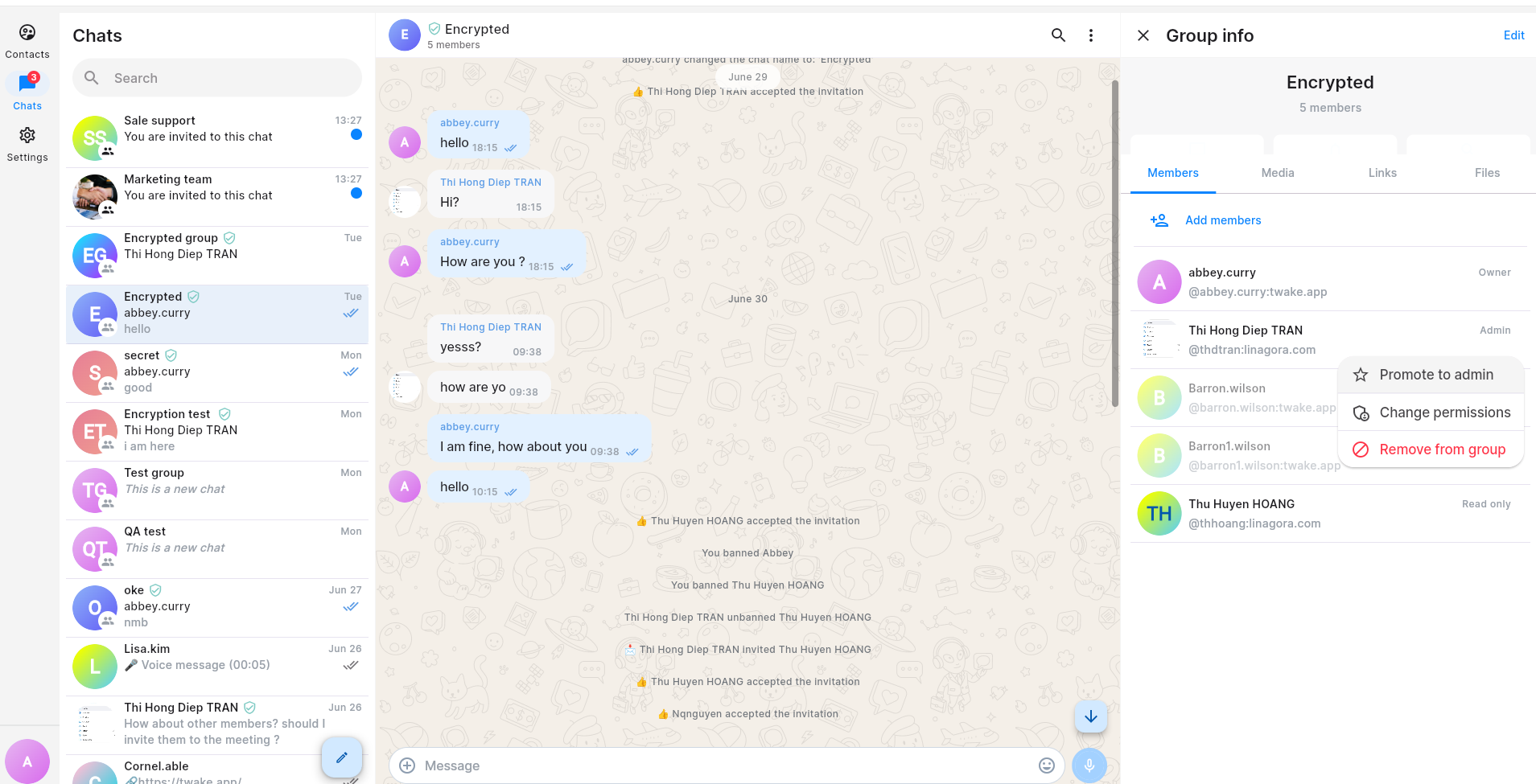
On mobile app, you need to long-press on the member to see the option list then select: "Promote to admin" or "Change permissions":