
Settings - Notifications
Notifications help you stay informed about new messages and activity in your chats. You can choose which events trigger notifications or temporarily mute all notifications when you need to focus.
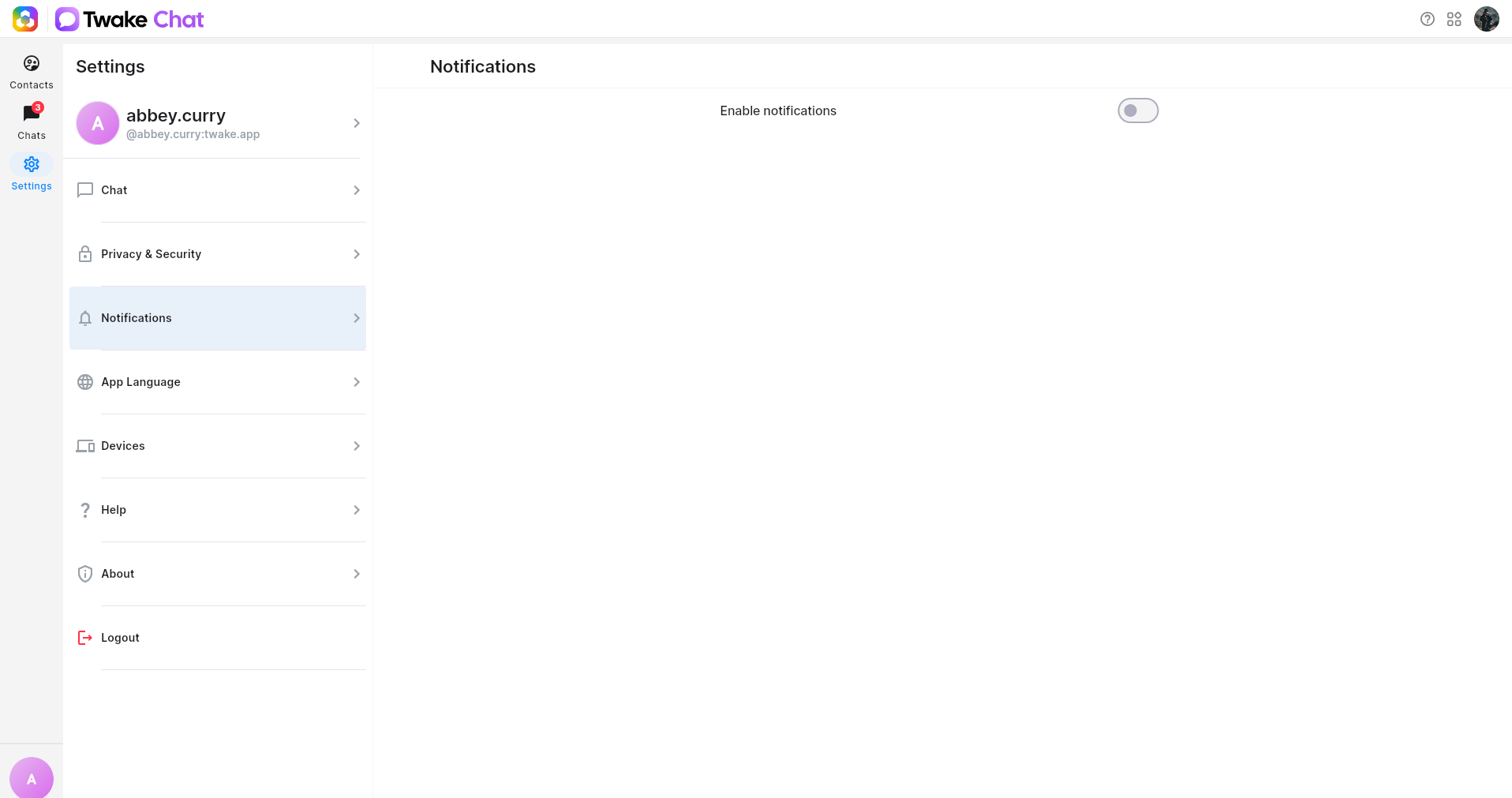
Disable All Notifications
If you don't want to receive any notifications from Twake Chat:
- Turn on the Disable notifications switch.
- Notifications for all chat activity will be muted until you turn the option off again.
Customize Push Notifications
If notifications are enabled, you can decide which activities should trigger a push notification:
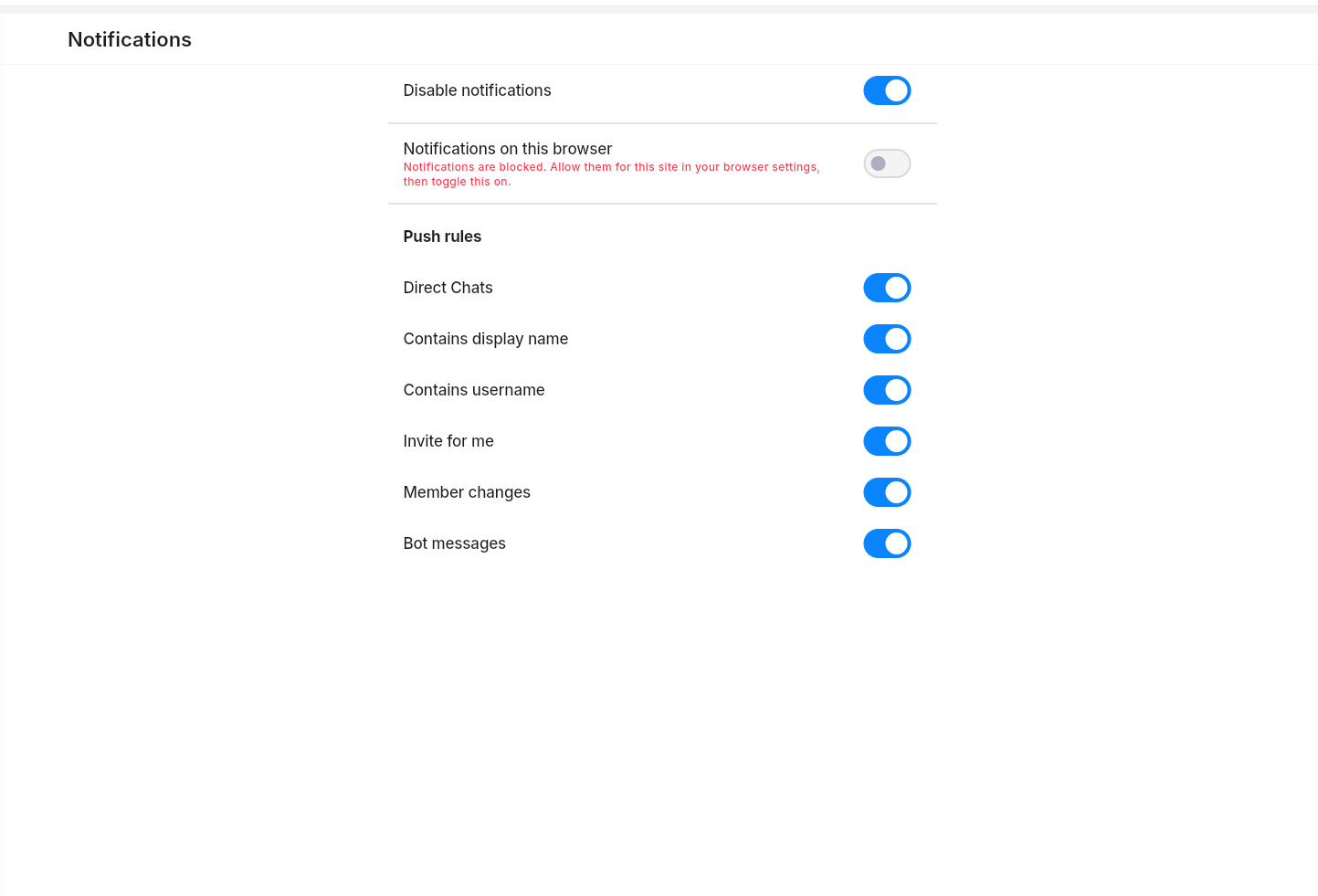
Notification on this browser
This setting controls whether notifications are displayed in the browser session you are currently using.
Note: This setting applies only to the current browser session. It does not affect Twake Chat notifications in other browsers, devices, or sessions. Configure the setting separately for each session.
Direct Chats
Receive notifications for messages sent in your one-to-one conversations.
Contains Display Name
Receive notifications when someone mentions your display name in a message.
Contains Username
Receive notifications when someone mentions your username (for example, @username).
Invite for Me
Receive notifications when you're invited to join a room or conversation.
Member Changes
Receive notifications about membership updates in group chat you're part of.
Examples include:
- Someone joins the group chat.
- Someone leaves the group chat.
- A member is removed.
- A member's role changes.
- ...
Bot Messages
Receive notifications for messages sent by bots or automated integrations.
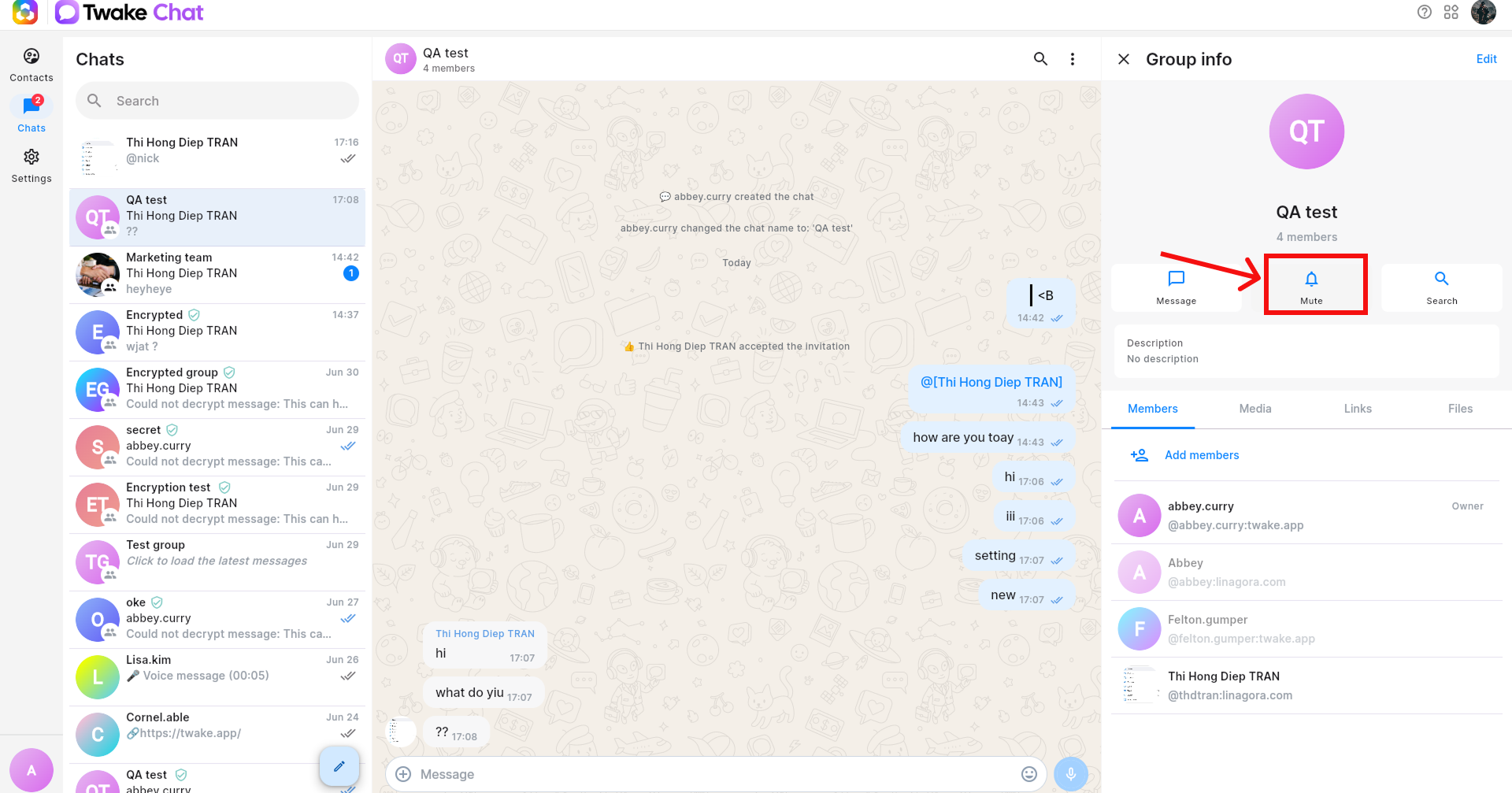
Mute/Unmute a group chat
Mute a group chat to stop receiving push notifications from that group while remaining a member.
To mute/unmute a Group Chat:
- Open the group chat.
- Open the Group info panel.
- Click Mute/Unmute
Mute/Unmute from the list of chats
You can mute or unmute a chat directly from the list of chats
To mute/unmute a Group Chat:
- Right-click on a chat in the list of chats
- Click Mute/Unmute this chat
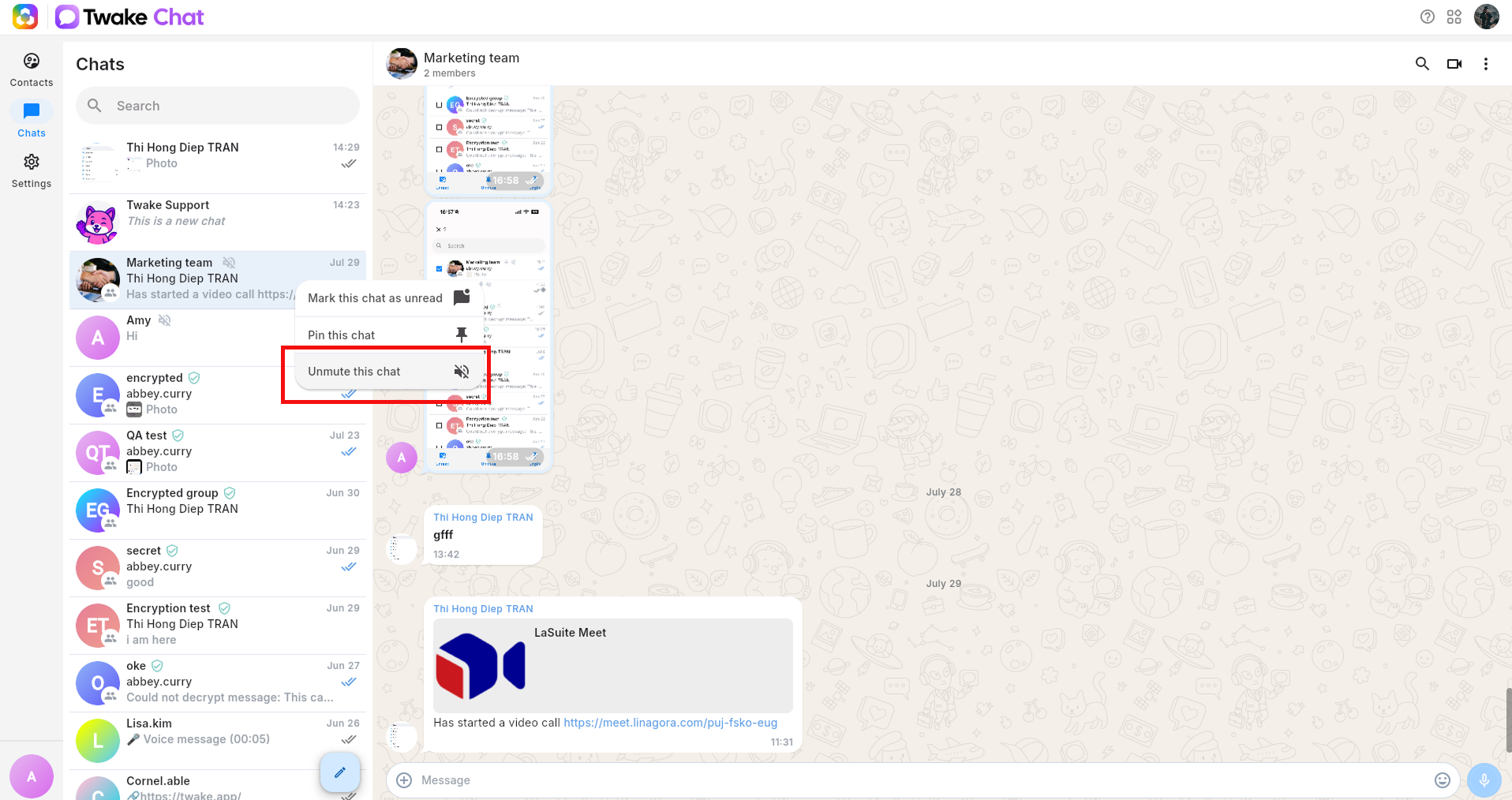
On mobile app, long-press on a chat from the list of chats then click Mute/Unmute this chat:
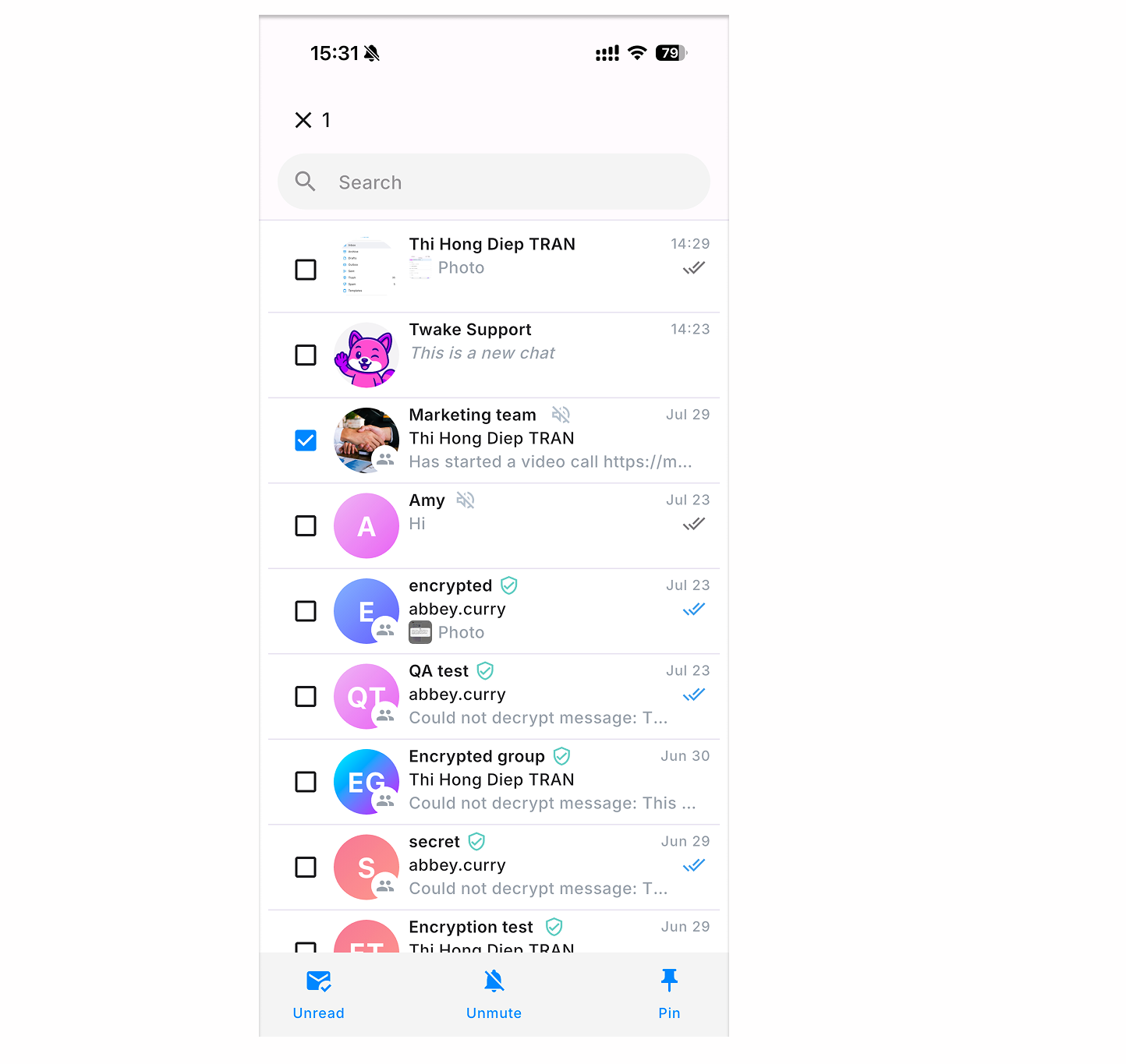
Set notification on mobile app:
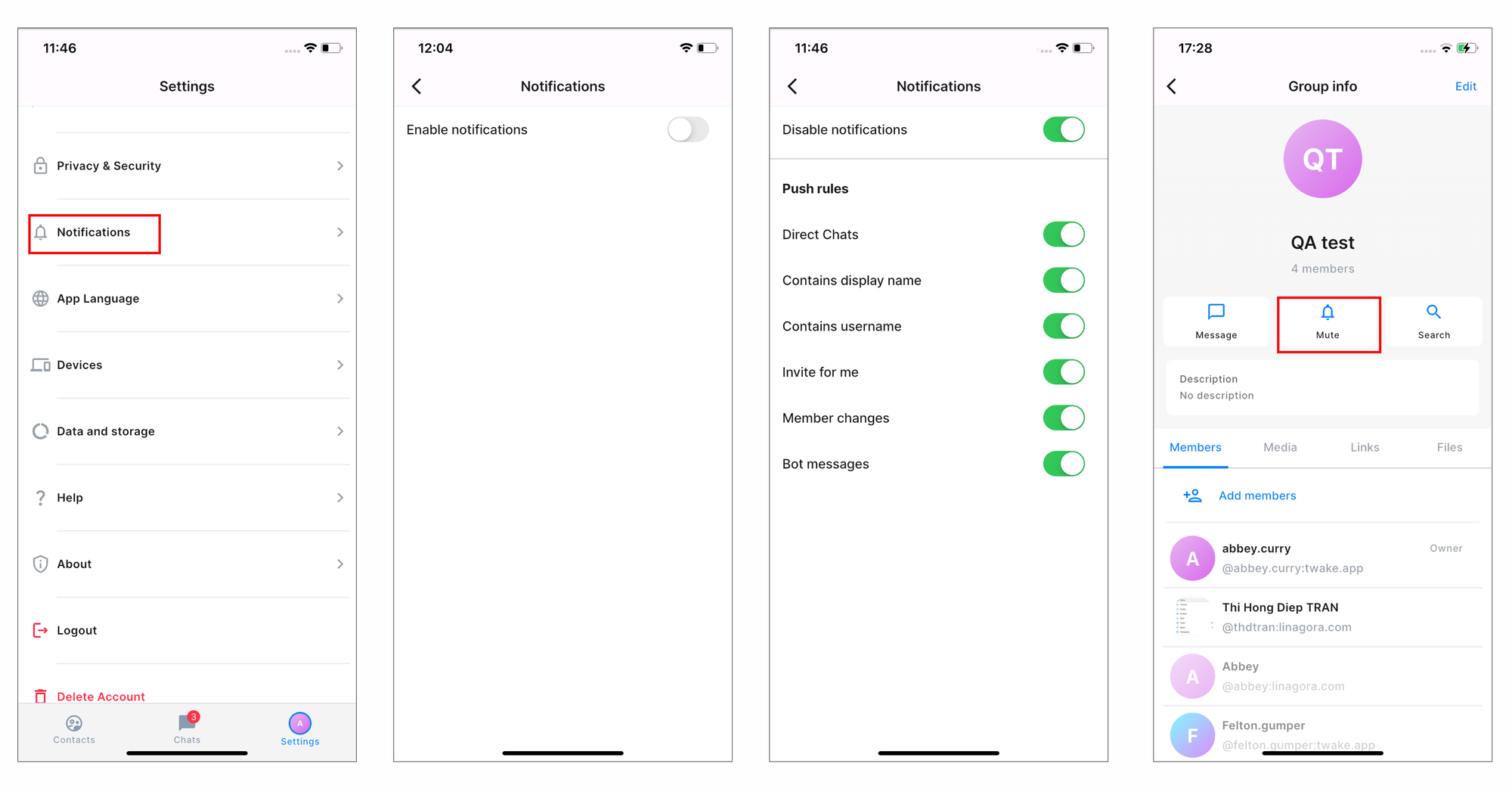
In addition to enabling notifications in Twake Chat, you must also allow notifications for the app in your device's settings. If notifications are disabled at the system level, Twake Chat cannot send push notifications.
For more details, see Install Twake Chat app