Twake Mail - Read emails
Twake Mail makes it easy to browse, read, and filers your emails. This guide explains how to:
- Browse emails in a folder
- Open and read an email
- Filter messages to find what you need faster
Navigate Folders
Folders are displayed in the left sidebar and help organize your emails.
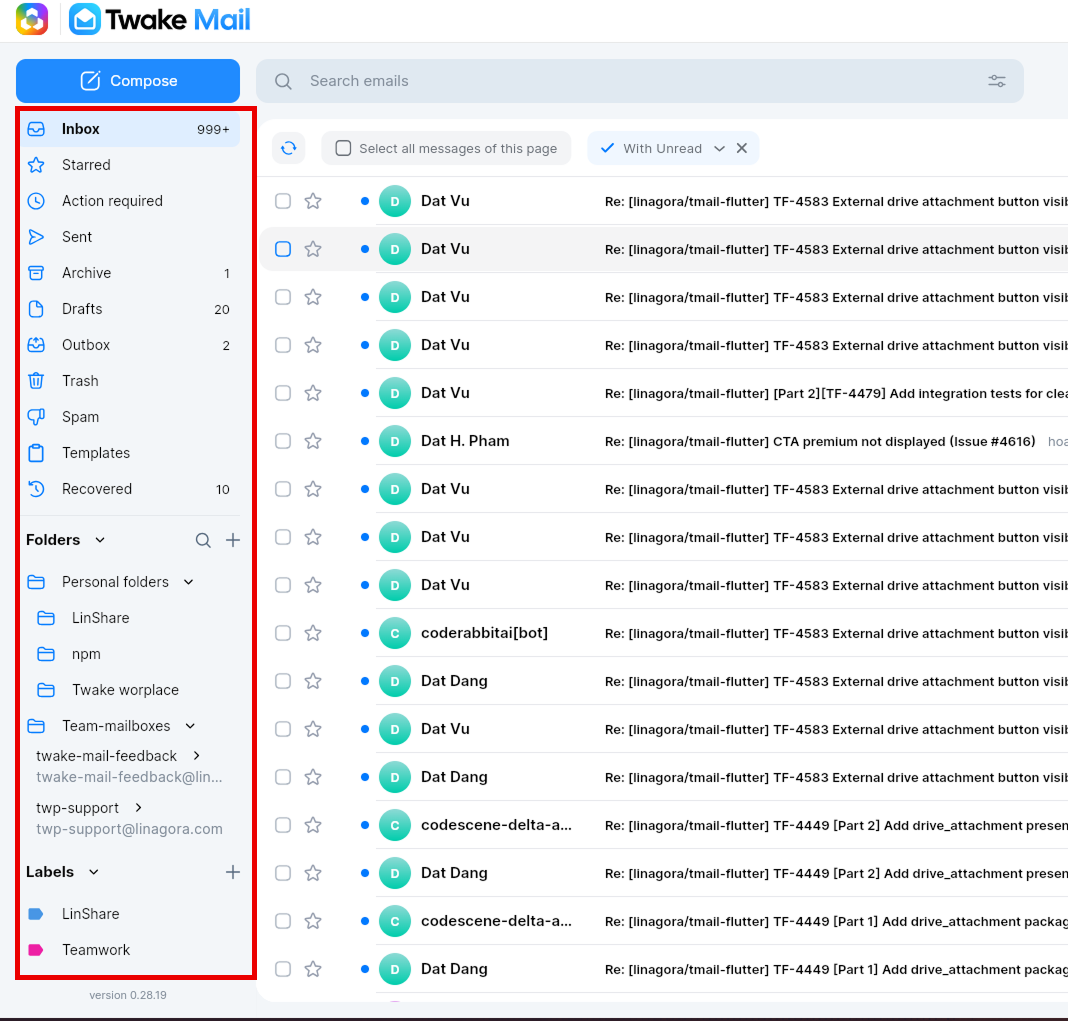
Common folders include: Inbox, Starred, Sent, Archive, Drafts, Outbox, Trash, Spam, Templates, Recovered.
Depending on your configuration, you may also see:
- Personal folders – Custom folders created for your mailbox
- Team mailboxes – Shared mailboxes used by a team
- Labels – Categories used to organize emails
Expand a section to view its contents.
To open a folder:
- Click the folder name from the left sidebar
- The email list updates automatically.
👉 Want to go deeper? Read How to use folders, labels and Team-mailboxes
Browse Emails
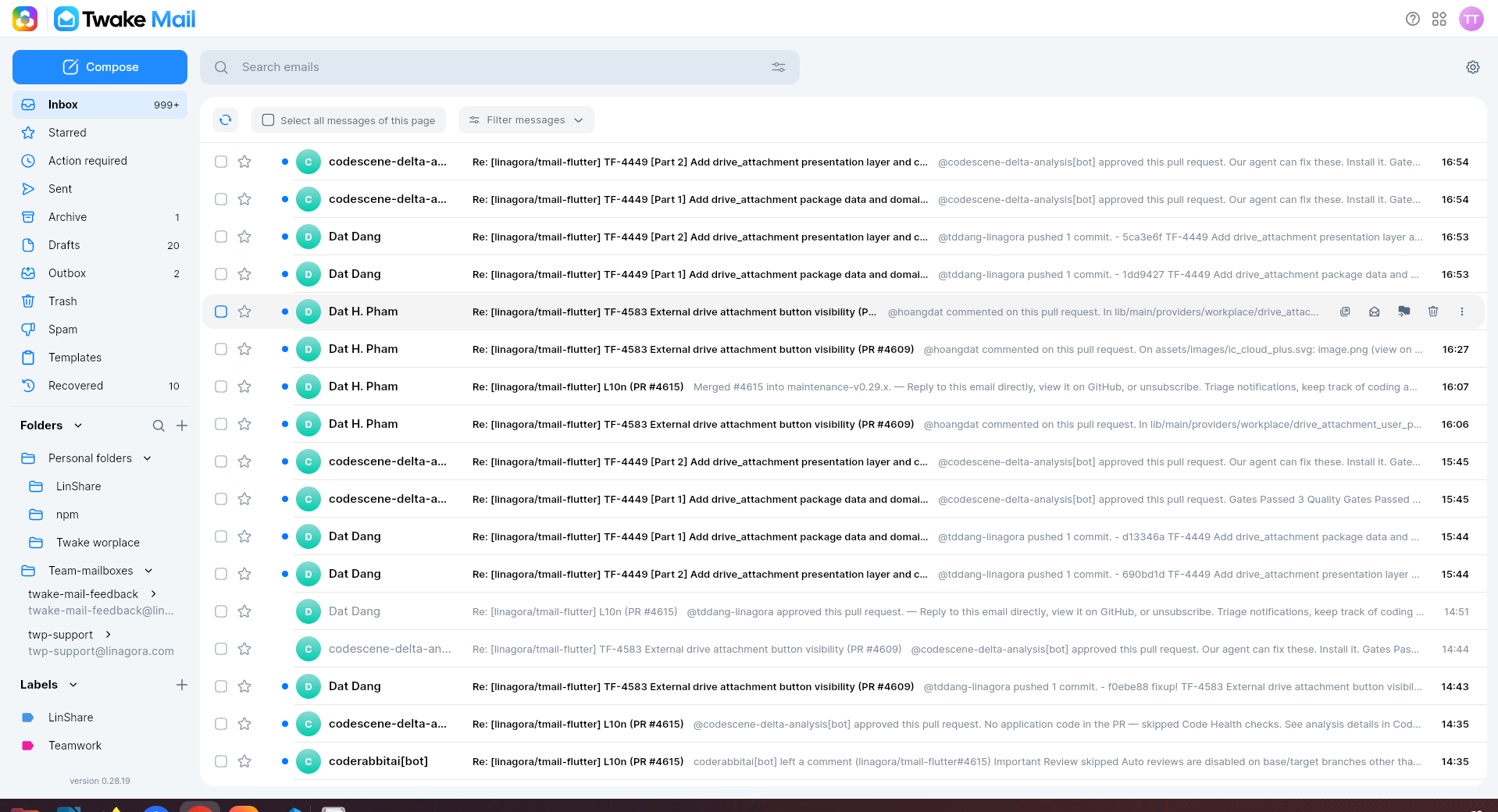
When you open Twake Mail, the selected folder (such as Inbox) is displayed in the main area.
Open an Email
- Select a folder from the left sidebar (for example, Inbox).
- Browse the list of emails.
- Click the email you want to read.
The email opens in the reading view:
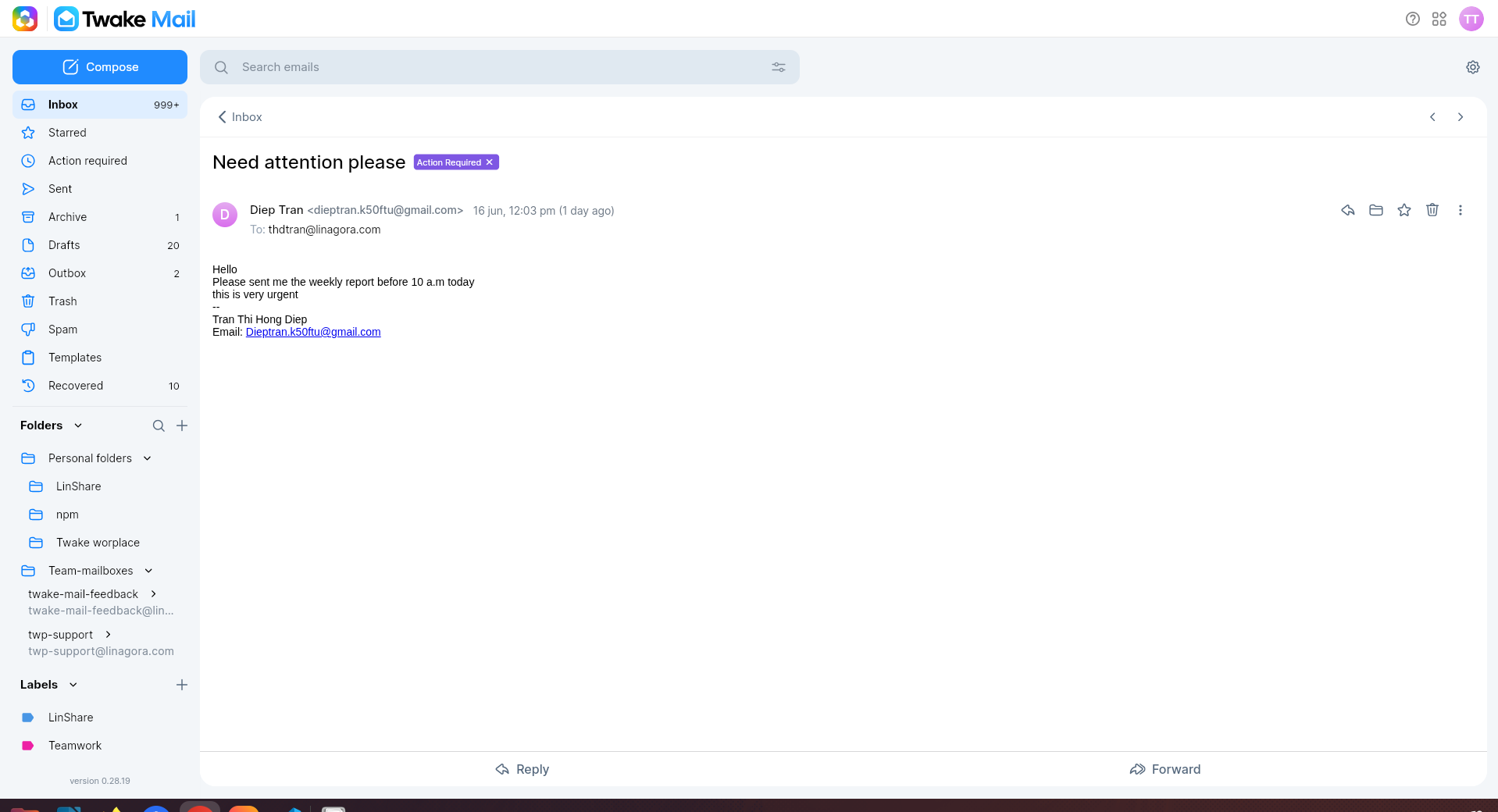
You can execute actions on emails such as mark as star, read, move...
👉 Want to go deeper? Read Actions on emails
Download Attachments
If an email contains attachments:
- Open the email.
- Locate the attachment section.
- Click the attachment name or download icon.
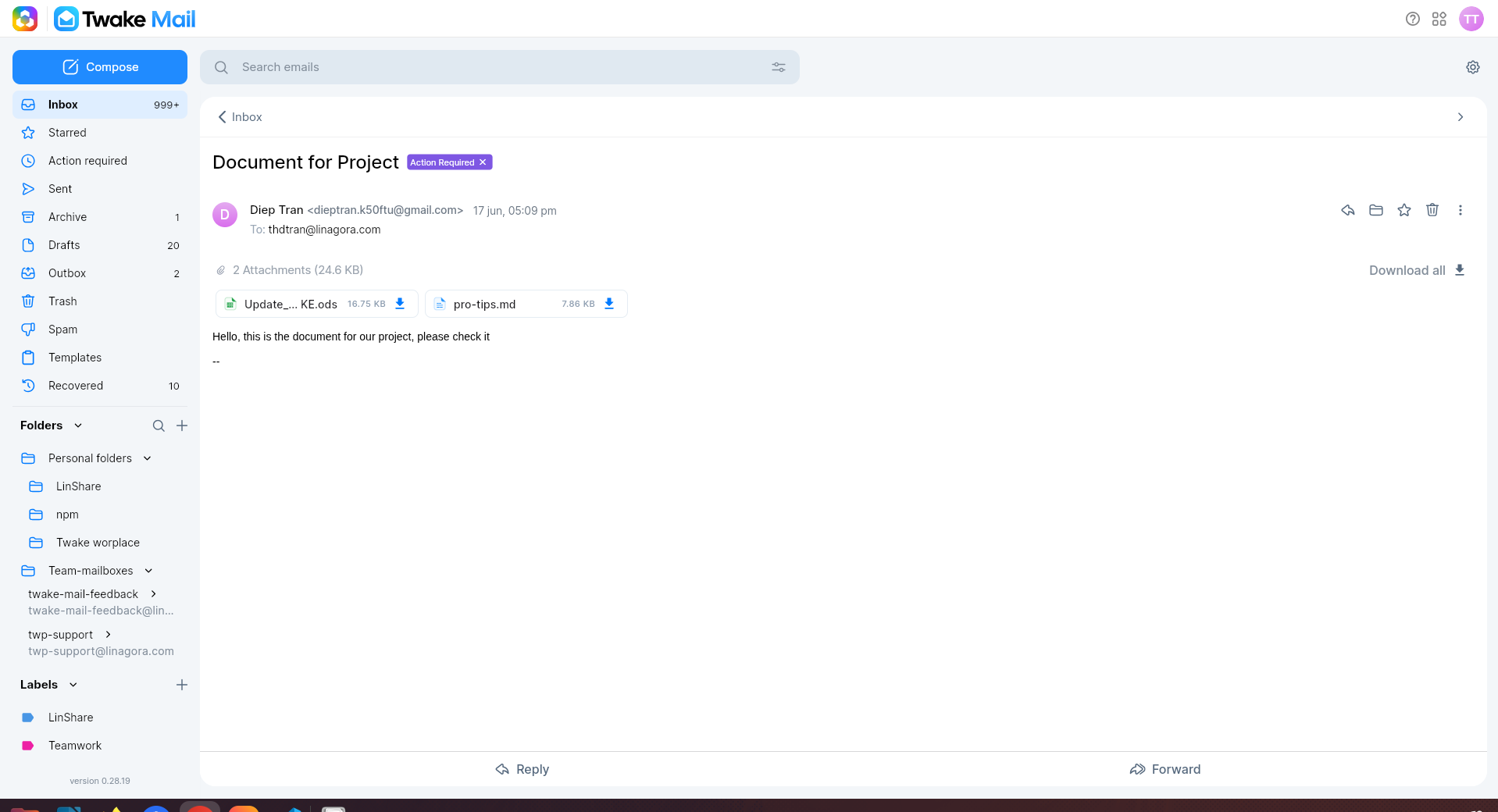
The file will be downloaded to your device. You can also click Download all button to create an archive of all attachments and download:
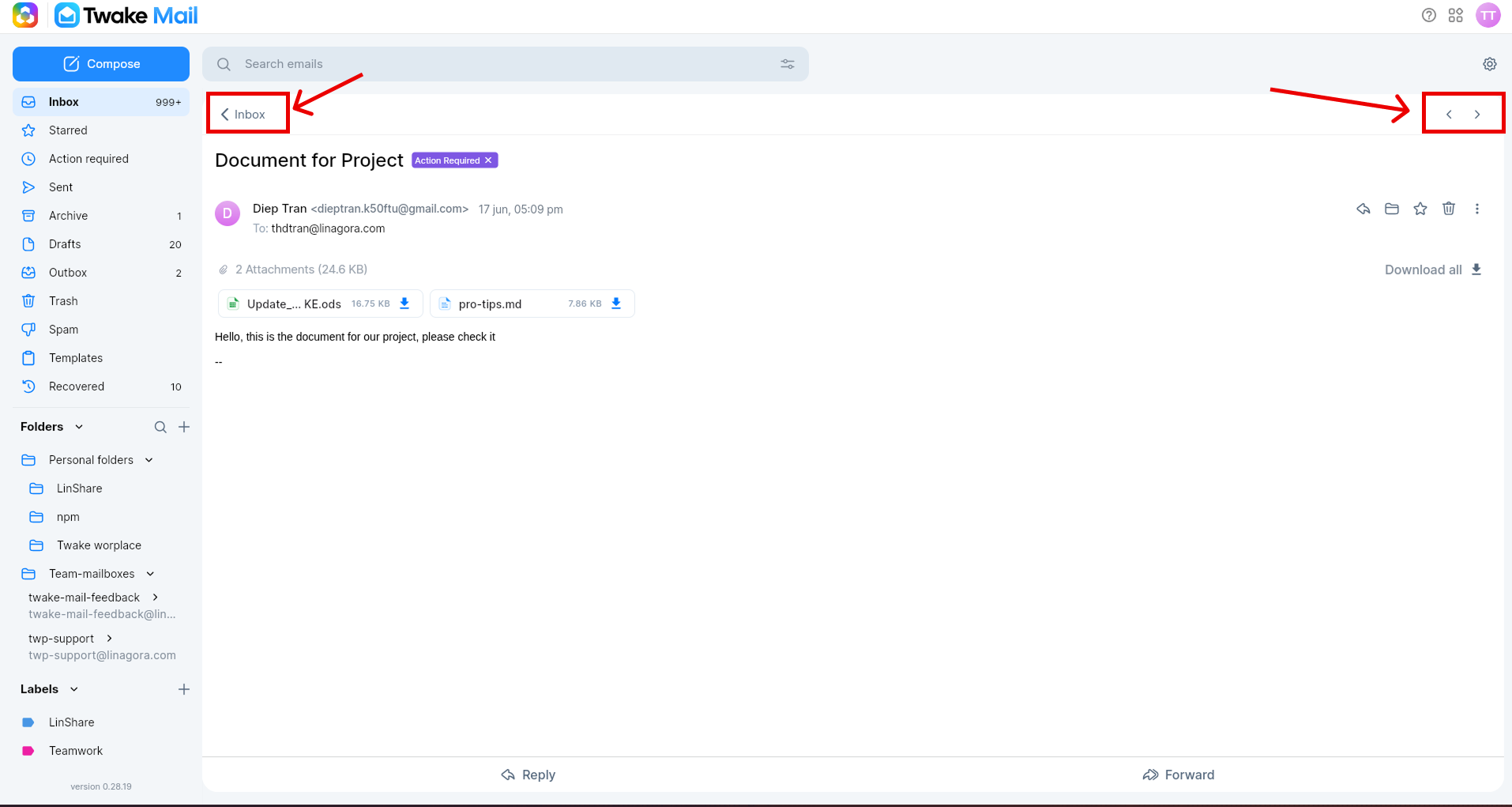
Return to the Email List/ Open older/newer email
To go back to the folder view, click the folder name or the back button at the top left of the page.
To open the older/newer email, click the previous/next arrow on the top right of the page:
Filter Messages
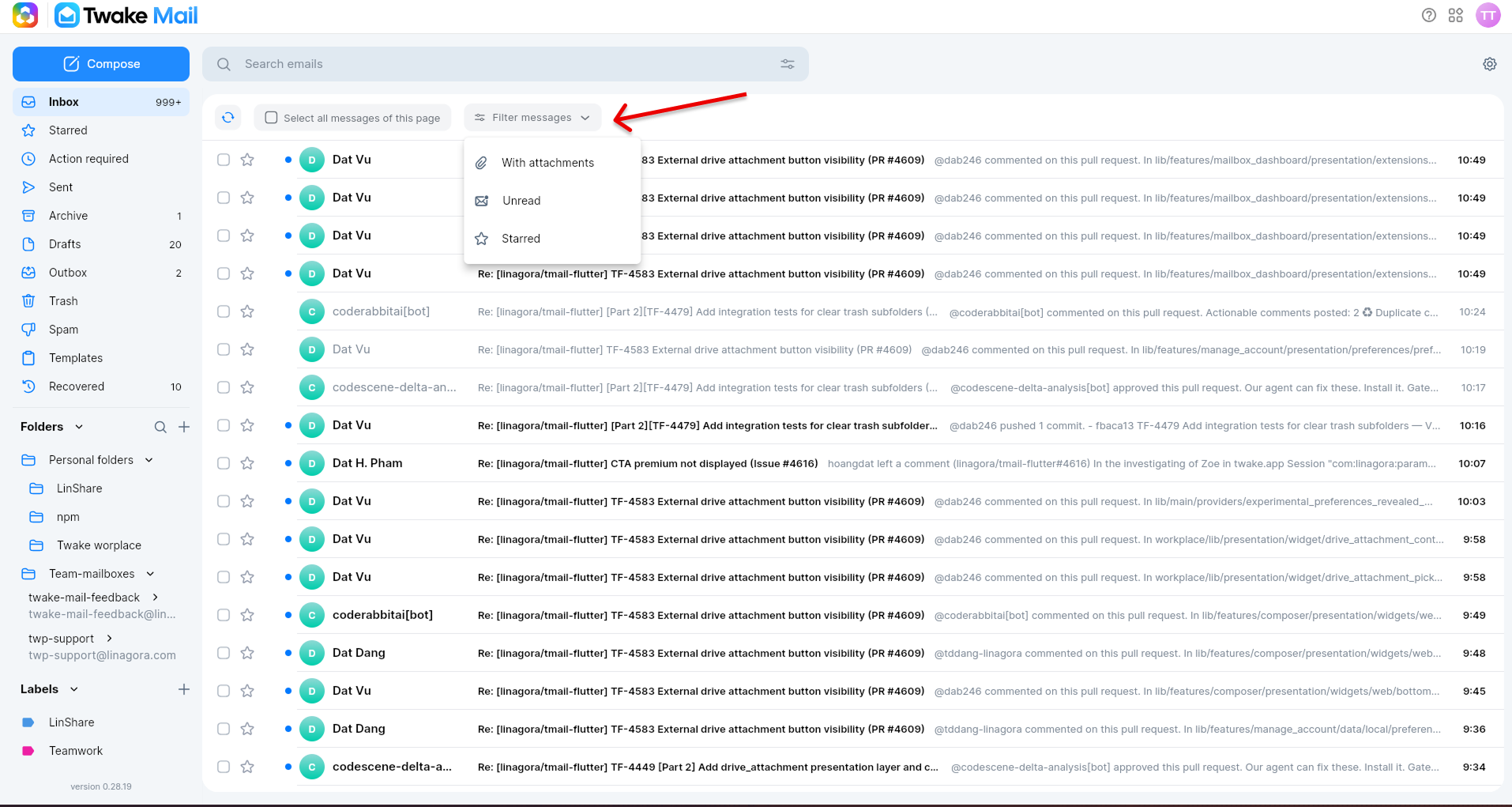
Filters help you quickly find specific emails. The filter menu is available above the mail listing view. It includes:
| Filter | What it shows |
|---|---|
| With attachments | Emails that include one or more files |
| Unread | Emails you have not opened yet |
| Starred | Emails marked with a star |
To filter messages:
- Open the folder you want to review.
- Select Filter messages above the mail listing view.
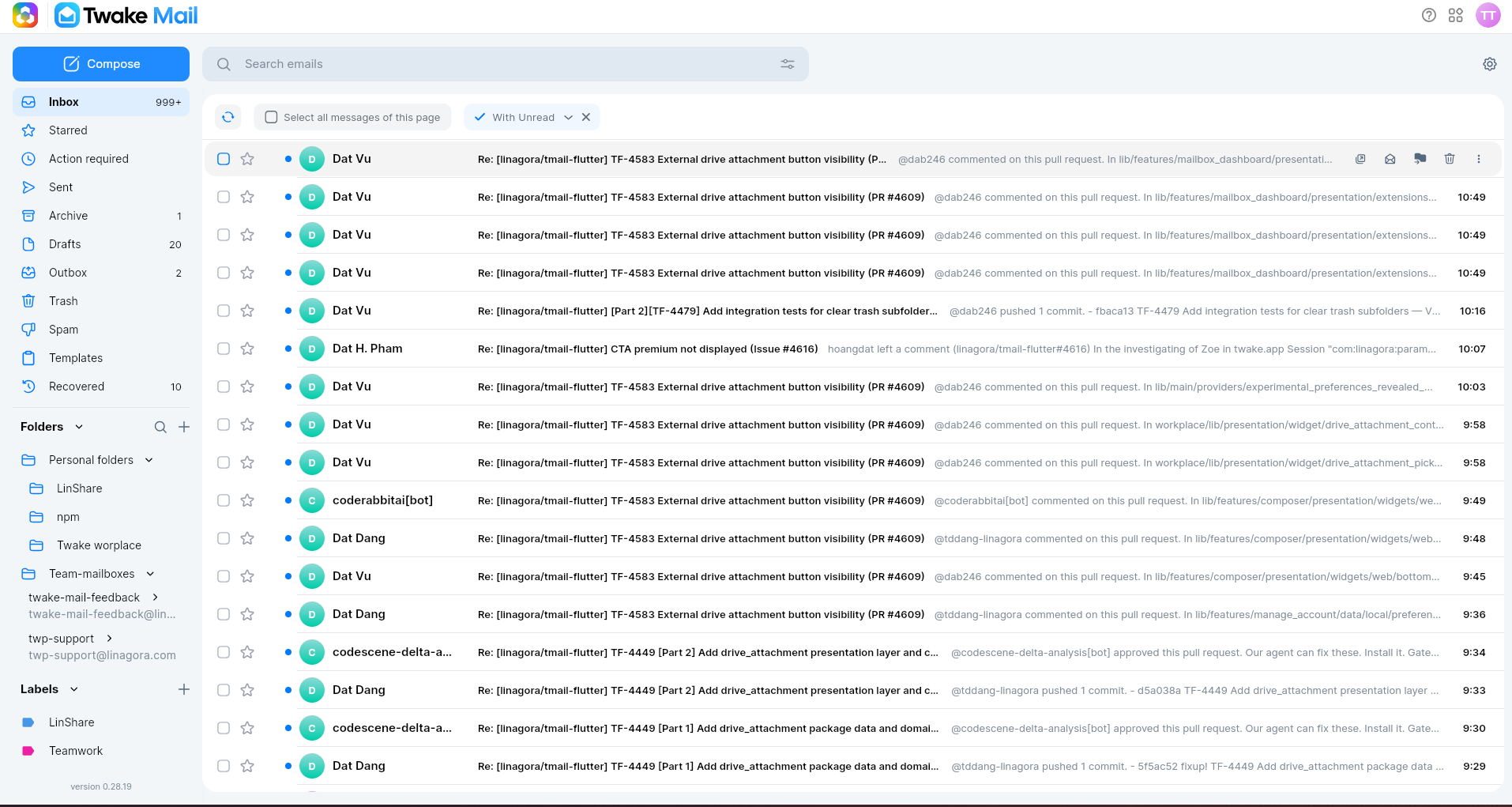
- Choose the filter you want to apply.
- Review the filtered results.
To return to the full mail listing view, clear the filter or select the default view.